Alerts
Module-level alert conditions inside mrD-Signals Premium — eight alert modes spanning signal-only, regime-change, and All-Signals catch-all. Wire them through TradingView's "Any alert() function call" mechanism for push, email, SMS or webhook delivery (auto-trade bots, Discord, Telegram, custom systems).
This page documents the alert conditions exposed by the mrD-Signals Premium study specifically. For the platform-level mechanics — alert frequency, delivery channels, plan-level alert limits, webhook security, JSON payload templates — see the more general TradingView Alerts page.
Module-level alerts let the study fire only on the events that matter for your style — Advanced STRONG only, Trend Cloud flips, RSI Band direction changes — instead of forwarding every triangle the study can print. Pick one mode per chart; pair it with TradingView's "Once Per Bar Close" frequency, and your bot or push channel receives a clean, non-repainting stream.
 The
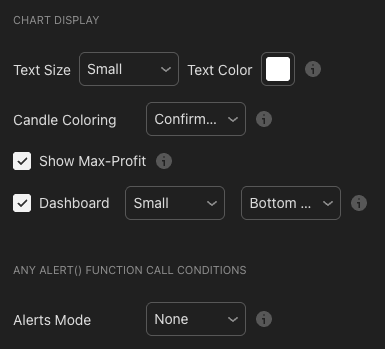
The Alerts Mode dropdown is at the bottom of the indicator's input panel. Pick one mode; TradingView's alert dialog then picks up the events automatically.
The eight alert modes
| Mode | Fires when | Best fit |
|---|---|---|
| None | Never (alerts off) | Traders who only watch the chart directly. |
| All Signals | Every signal — Waves Trend + Contrarian + Advanced + DCA + cloud / catcher / band direction changes | Catch-all; warning: can be very noisy. |
| DCA+ Signals | Dollar-cost-average entries (with main trend) | Long-term DCA. |
| Advanced Signals | Advanced only (STRONG / NORMAL) | Quality-over-quantity swing / position. |
| Waves Trend Signals | Waves Trend only (BUY / SELL) | Trend-following day-trade / swing. |
| Contrarian Signals | Contrarian only (reversal) | Counter-trend / mean-reversion. |
| Trend Cloud Direction | Trend Cloud changes colour | Regime-following workflows. |
| Trend Catcher Direction | Trend Catcher prints a ▲ / ▼ flip | Pullback traders. |
| RSI Band Direction | RSI Band changes direction | Momentum / macro traders. |
Default recommendation. Pick the mode that matches the signals you actually trade. If you trade Advanced, pick "Advanced Signals" alerts. Avoid "All Signals" unless you are actively triaging — it will become noise inside a week and you will start ignoring real signals.
Enabling alerts in the study
Step 1 — open the indicator settings
Click the gear icon next to the study name on the chart.
Step 2 — find the ANY ALERT() FUNCTION CALL CONDITIONS group
It sits at the bottom of the input panel.
Step 3 — pick an Alerts Mode
From the dropdown above, pick the alert mode that matches your style.
Step 4 — close the panel
Settings auto-save.
Steps 1 – 4 only enable trigger conditions in the study code. For TradingView to actually deliver notifications, you still need to create the alert at the platform level (next section).
Creating the alert in TradingView
After enabling the mode in the study, create one alert in TradingView so notifications get delivered:
- Click the bell icon on the TradingView toolbar (or press
Alt + A). - In the Condition dropdown, pick
mrD-Signals [Premium]. - In the sub-condition dropdown, pick
Any alert() function call. Important — must be this option, not the others. - Set Frequency to Once Per Bar Close to avoid wick-driven false alerts. (Choose "Once Per Bar" only if you accept the chance of intra-bar repaints.)
- Tick the notification channels you want — push (TradingView app), email, sound, webhook.
- Name the alert (e.g. "BTC Advanced Signals") and set the expiration (open-ended or a fixed date).
- Click Create.
Message format
Each alert message is pre-built — no template editing required:
Advanced BUY: BTCUSDT
Timeframe: 1H
Open: $42,580.50
https://mrd-indicators.com/
The message includes:
- Signal type (Advanced BUY / Waves Trend SELL / Contrarian BUY / etc).
- Ticker (BTCUSDT, EURUSD, …).
- Timeframe active on the chart.
- Open price of the signal candle.
- Reference link back to mrD-Indicators.
The format is the same regardless of channel — push, email, webhook. Webhook receivers parse the text to drive their action.
Webhook — auto-trading setup
A webhook is a URL endpoint TradingView POSTs to whenever the alert fires. Common destinations: 3Commas / Cryptohopper / Binance bot for auto-trade, Discord / Telegram for team alerts, a custom Python or Node.js endpoint for logging.
How to wire it
- In the alert creation dialog, tick Webhook URL and paste your endpoint.
- Your server receives the POST body — parse it and execute the action (buy / sell / log / forward).
Webhook security checklist
- HTTPS only. TradingView rejects HTTP webhooks.
- Secret token in URL or body to verify origin.
- Rate limit on your endpoint. TradingView is not aggressive but defensive caps protect against misfires.
- Test mode first. Send 5 – 10 test alerts before connecting any real trading account.
Splitting BUY and SELL into separate alerts
You can create two alerts on the same study — one tuned to BUY events, one to SELL — each with its own webhook URL. This makes bot routing cleaner than parsing one combined stream.
Recommended profiles per style
Quality-only (swing / position)
Alert Mode: Advanced Signals
Frequency: Once Per Bar Close
Channels:  Push + Email + Webhook (bot)
Expected: 2-5 alerts/week (high quality)
Active scalper (day trader)
Alert Mode: Waves Trend Signals
Profile:    Short-Term
Frequency:  Once Per Bar Close
Channels:   Push only (fast)
Expected:   3-10 alerts/day
Reversal hunter (contrarian)
Alert Mode: Contrarian Signals
Frequency: Once Per Bar Close
Channels:  Push + Email
Expected: 2-8 alerts/week (major tops / bottoms)
Multi-confirmation (advanced workflow)
Create 2 separate alerts:
  Alert 1: "Trend Cloud Direction" → know when regime changes
  Alert 2: "Advanced Signals"      → know quality entries

Only trade when both fire within a few candles of each other.
Long-term DCA (passive)
Alert Mode: DCA+ Signals
Frequency: Once Per Bar Close
Channels:  Email weekly summary
Expected: 4-10 alerts/month (long-term entries)
Watching multiple assets
Each alert runs on one symbol. To monitor multiple assets, open the chart for each, apply the study, set the alert mode, and create an alert. TradingView caps active alerts per plan:
| Plan | Active alerts |
|---|---|
| Basic (Free) | 1 |
| Pro | 20 |
| Pro+ | 100 |
| Premium | 400 |
Recommendation. Five to ten assets with active alerts at once is the realistic ceiling before you start ignoring notifications.
Common problems
I created an alert but receive nothing
Check, in order:
- The study's Alerts Mode is set to something other than "None".
- The TradingView alert chose
Any alert() function callas the sub-condition. - The notification channels (push / email) are enabled in TradingView's account settings.
- The alert is active (not expired).
- The signal mode in the indicator matches the alert mode. If you picked "Advanced Signals" alerts but the indicator's
Signals Detectionis still "Waves Trend", you will receive Waves alerts, not Advanced. Match the mode.
Too many alerts
- Switch from "All Signals" to a specific mode (Advanced / Waves / Contrarian).
- Step the profile up (Short → Mid → Long-Term).
- Move the chart TF higher (15m → 1H → 4H).
- Use Once Per Bar Close instead of "Once Per Bar".
Webhook not working
- URL must be HTTPS (TradingView does not allow HTTP).
- Test the endpoint with
curlor Postman first. - Check rate limits and firewall on your server.
- Check your bot / server logs to see whether TradingView is actually sending anything.
Alert fires but price has already moved far
That is correct behaviour:
- The study uses Once Per Bar Close to avoid repaint.
- Bar closes → alert fires → you receive it a few seconds later (depending on TF).
- On small TFs (1m, 5m), this latency matters — consider a webhook + bot to reduce manual reaction time.
Alert "disappeared" after I changed chart TF
The alert is created for the TF active at creation time. Changing chart TF does not affect existing alerts. To get an alert on a different TF, create a new alert on that TF.
Golden rules
- Don't spam. Too many alerts → alert fatigue → ignored alerts → missed important ones. Only enable alerts for modes you actually trade.
- Use Once Per Bar Close. Accept one-bar delay in exchange for alert quality.
- Test webhooks first. Run at least 20 – 30 alerts through a paper / test environment before connecting any real trading account.
- Install the TradingView mobile app. Push notifications are the fastest free channel.
- Do not over-rely on alerts. Alerts are assistants, not autopilot. Before entering, still confirm candle colour, Trend Cloud, dashboard win rate, and market context.
Disclaimer
Auto-trading via webhook carries real risk. Bots will trade in unusual market conditions (flash crash, gap, scheduled event) and can cause large losses. Always:
- Paper trade / demo first. No exceptions.
- Set hard risk limits on the bot — max position size, max daily loss.
- Monitor the first few sessions the bot is live — log every action and validate it matches what the alert intended.
Trading carries a high risk of capital loss. The study and its alerts are educational tools, not a profit guarantee.
Where to go next
- Statistics Dashboard — figure out which mode the asset historically prefers before wiring alerts for it.
- Advanced Signals — the most common "quality-only" alert source for swing / position traders.
- Waves Trend Signals — the most common active-trader alert source.
- TradingView Alerts (platform-level) — the underlying alert mechanics, plan limits, and webhook payload templates.
- Overview — back to the study overview.