Alerts
Two independent alert systems inside mrD-Smart Ranges — OB Signal (BUY / SELL triangle on Order Block Breaker retest) and FVG Signal (•BUY / •SELL arrow on matured Fair Value Gap retest). Wire them through TradingView's "Any alert() function call" mechanism for push, email, webhook (auto-trade bots, Telegram, Discord). Full setup walkthrough, message format, direction filter, and recommended pairings.
mrD-Smart Ranges exposes two independent alert systems at the study level: an Order Block alert that fires on the primary BUY / SELL retest triangle, and a Fair Value Gap alert that fires on the smaller dot-prefixed arrow when a matured FVG is retested. Both flow through TradingView's standard alert infrastructure (push, email, webhook), and both are filtered by a single Signals Alerts Type direction selector so you can run long-only / short-only / both as a per-chart preference.
This page documents the alert conditions exposed by the study specifically. For the platform-level mechanics — alert frequency, delivery channels, plan-level alert limits, webhook security, JSON payload templates — see the more general TradingView Alerts page.
 The standard TradingView Create-Alert dialog. The single rule for this study is:
 Condition: mrD-Smart Ranges + the second dropdown set to Any alert() function call. Any other dropdown option will not fire.
The two alert types
| Alert | Chart label | Source | Best for |
|---|---|---|---|
| OB Signal | BUY / SELL triangle (large) | Order Block Breaker retest — a previously-broken OB acting as flipped support / resistance | The primary entry alert of the study; pair with one momentum confluence. |
| FVG Signal | •BUY / •SELL arrow (small, dot-prefixed) | Matured Fair Value Gap retest — see FVG Extend | A confluence-only alert; only takes the trade if the FVG aligns with an OB. |
The two alerts are produced by separate engines but they ride the same alert() pipe in TradingView. A single TradingView alert wired to Any alert() function call captures both — you do not need two alerts for two engines.
Enable / disable signals
Three settings in the indicator panel control which alerts can fire. The naming is split across two settings groups — be careful when toggling:
| Setting | Location | What it controls |
|---|---|---|
| Order Block Signals | VOLUMETRIC ORDER BLOCKS | Turns the OB BUY / SELL triangle signal on / off. Required for OB alerts. |
| FVG Filters | IMBALANCE CONCEPT | Renders FVG zones on chart. Required for FVG alerts to fire. |
| FVG Signals | IMBALANCE CONCEPT | Turns the FVG •BUY / •SELL arrow on / off. Required for FVG alerts. |
FVG dependency
The FVG alert engine has a strict two-toggle requirement:
| FVG Filters | FVG Signals | FVG alerts fire? |
|---|---|---|
| Off | Off | No |
| On | Off | No (zones rendered, signals off) |
| Off | On | No (signals depend on zones — common misconfiguration) |
| On | On | Yes |
If you have wired alerts and they are silent on the FVG side, the dependency above is the first thing to check.
Filter alert direction — Signals Alerts Type
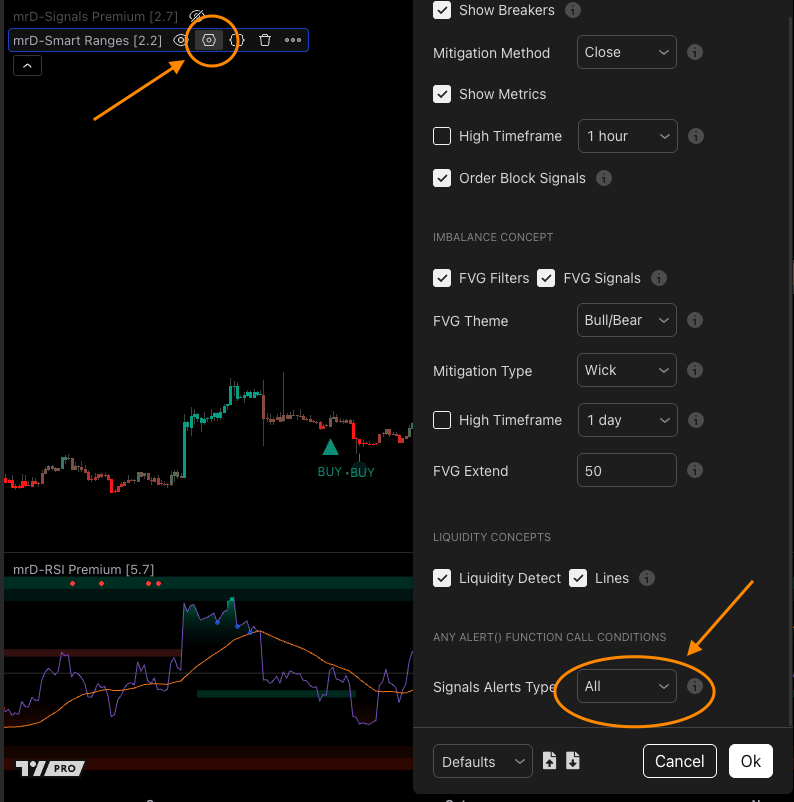
A single setting at the bottom of the input panel, under ANY ALERT() FUNCTION CALL CONDITIONS, controls which directions are forwarded to TradingView's alert pipe.
Signals Alerts Type modes:
| Mode | BUY alerts | SELL alerts | Use case |
|---|---|---|---|
| All | Yes | Yes | Both directions — bot or trader handles both sides. |
| Buy | Yes | No | Long-only strategy (e.g. spot account, long-only auto-trade). |
| Sell | No | Yes | Short-only strategy (rare). |
| None | No | No | Alerts off entirely without disabling the visual signals. |
This filter applies to both the OB and the FVG engines simultaneously. There is no separate direction filter per engine — the design choice is "one chart, one direction policy".
How to create the alert on TradingView
Six steps. Done once per chart / symbol / timeframe.
- Add mrD-Smart Ranges to your chart and confirm at least one signal-producing toggle is ON (
Order Block Signalsand / orFVG Filters + FVG Signals). - Press
Alt + A(or click the alarm-clock icon in the top toolbar). - Set Condition to mrD-Smart Ranges.
- Set the second dropdown to
Any alert() function call. Important: the other Condition options will not fire — onlyAny alert() function callworks. - Set Frequency to Once Per Bar Close for non-repainting behaviour.
- Choose your delivery channel — TradingView in-app push, email, webhook URL (for auto-trade bots, Telegram / Discord forwarders), or any combination. Click Create.
That single alert captures every signal the study can produce on the chosen chart. If you want alerts on multiple timeframes, open separate chart tabs for each TF and create one alert per chart.
Alert message format
The message body is built by the indicator. The format differs between OB and FVG so a bot or human reader can route them differently.
OB Signal — long alert
🟢 BUY | #BTCUSD
🏷 Timeframe: 1H
🔝 Price: 119070
©️ Entry: 118960
❗️ SL: 117350
✓ TP: 121375, 122985, 124595
FVG Signal — long alert
FVG BUY: 💎 FVG BUY | #BTCUSD
🏷 TF: 1H
🔲 Zone: 111560 — 112630
💰 Price: 112400
❗ SL: 111384.84
✓ TP1: 113922.73
✓ TP2: 114937.89
The emoji-prefixed lines are literal characters in the message template — they help a human reader scan the message quickly inside Telegram / Discord. If you forward the alert through a webhook to a system that prefers plain text, your webhook receiver can strip the prefix glyphs with a simple regex (/^[\p{Emoji_Presentation}\p{Extended_Pictographic}]\s*/u) before parsing the rest.
Message field reference
| Field | Meaning |
|---|---|
Timeframe / TF | Chart timeframe when the signal triggered (1H, 15, 4H, etc.). |
Price | Price at the moment of the signal — usually equals the bar's close. |
Entry | Suggested entry level — OB alerts only. The OB-breaker retest band edge. |
Zone | The FVG price range, bottom — top — FVG alerts only. The full imbalance band. |
SL | Suggested stop-loss level — derived from the structural geometry (other side of the OB / FVG). |
TP / TP1 / TP2 / TP3 | Suggested take-profit levels — up to three for OB, up to two for FVG. Derived from the nearest opposite-side structures. |
Entry / SL / TP are suggestions computed from the geometry of the zone the signal is firing at. They are not orders the study places — the study cannot execute trades; only your bot or your manual click can. If you have specific risk-management rules, override the suggested levels in your own execution logic and use the alert only as the trigger.
Recommended setup
Two steps. Make the choice once per chart.
Step 1 — pick which engines you want
- OB only — turn
FVG SignalsOFF. Cleanest setup; suitable for traders who only trade OB-breaker retests. - FVG only — turn
Order Block SignalsOFF (keepFVG FiltersON). Suitable for traders running an FVG-fill strategy. - Both — keep both ON. Maximum coverage; your bot or your eye must handle the higher alert frequency.
Step 2 — pick the direction filter
- Long-only account / strategy →
Signals Alerts Type = Buy. - Short-only strategy →
Signals Alerts Type = Sell. - Both directions →
Signals Alerts Type = All.
Then create the single TradingView alert per the six steps above. The alert pipe is configured; the study handles which signals are sent through it.
Webhook delivery — auto-trade and channel forwarding
The TradingView alert can post to an HTTPS webhook URL on the Pro+ plan and above. The webhook body is the alert message text (the format above) — your receiver needs to parse it.
Common targets:
- Auto-trade bots (3Commas, custom bot, your own service) — parse
BUY/SELL,Price,SL,TP1/2/3from the message and place the order through the exchange API. - Telegram / Discord forwarders — many free services accept a TradingView webhook and re-post to a chat channel. The emoji-prefixed format renders well in both platforms.
- JSON pipeline — if you want structured data instead of the human-readable text, use TradingView's
{{strategy.order.alert_message}}placeholders in the alert's Message field to build a JSON body. See TradingView Alerts for the JSON template pattern.
The webhook is sent with Content-Type: text/plain by default; configure your receiver accordingly, or set the Message field to a valid JSON document for application/json.
Tips
- Each alert fires once per bar. TradingView's
Once Per Bar Closefrequency setting deduplicates within a candle — you will never receive two BUY alerts on the same bar. - Alerts work on every symbol and every timeframe. No special configuration per symbol.
- For multi-timeframe coverage, open one chart per TF. TradingView alerts are per-chart, not per-instrument — running the study on M15 only gives you M15 alerts. Open a 1H chart in another tab to get 1H alerts as well.
- Use the FVG Extend setting to control alert frequency. Lower
FVG Extend= more FVG alerts (less stringent maturity); higher = fewer but more reliable. See FVG Extend. - Combine with an Open Interest alert for the highest-conviction setups. An OB signal that fires while OI is also spiking is the strongest possible setup the study can produce — pair the alerts via a unified bot or unified Telegram channel.
Common mistakes
- Picking a Condition other than
Any alert() function call. The other dropdown options exist for legacy reasons but the study only emits viaalert(). The alert will not fire. - Leaving
Signals Alerts Type = None. Visual signals still print on the chart but no alerts are sent — a common cause of "alerts are configured but silent". Set toAll/Buy/Sellper intent. - Forgetting the
FVG Filtersdependency. TurningFVG SignalsON withoutFVG Filtersreturns nothing. Both required — see the dependency table above. - Creating one alert per signal type instead of one alert total.
Any alert() function callcaptures every signal — one alert per chart is all you need. - Setting frequency to
Every Time. This produces intra-bar alerts that fire and then move when the candle reprints — looks like repainting. UseOnce Per Bar Closefor the non-repainting stream the indicator is designed around.
Common questions
Why does the OB alert print before the FVG alert at the same setup? OB and FVG are independent engines. OB triangle fires on bar close as soon as the breaker retest condition is met; FVG arrow fires on bar close as soon as the matured FVG retest condition is met. They can fire on the same bar (the strongest setups), one bar apart, or not at the same setup at all.
Can I receive the alerts only on TradingView in-app push, no email / webhook? Yes — uncheck Email and Webhook URL in the Create-Alert dialog, leave "Show pop-up" and "Play sound" on. Then the study notifies only inside TradingView.
Why does the alert message contain emoji prefixes when this docs site otherwise avoids them? The message format is the literal text that arrives in your Telegram / Discord / push — preserving the original characters keeps the documentation faithful to what users will actually see. If you prefer monochrome, your webhook receiver can strip them before forwarding to a stricter downstream channel.
Are the suggested SL / TP levels in the message reliable? They are structural suggestions derived from the OB / FVG geometry — the SL is the other side of the zone, the TPs are the nearest opposite-side structural levels. They are reasonable defaults but not a substitute for personal risk management. Many traders use the levels as the starting point and tighten / widen based on volatility, account size, and conviction.
Where to go next
- The OB engine that produces the primary BUY / SELL triangle: Order Blocks.
- The FVG engine that produces the
•BUY/•SELLarrow: Imbalance Concept. - The platform-level alert mechanics, frequency, plan limits, webhook security, JSON payload templates: TradingView Alerts.
- Pair with momentum alerts for maximum conviction: mrD-Signals Premium — Alerts.
- Back to the study overview: mrD-Smart Ranges.