Add to Home Screen
Install mrD-Indicators as a Progressive Web App on desktop, iOS, iPadOS, and Android. One install per device, native-like launch icon, push notifications, and full-screen chart — no app store needed.
The web app is a Progressive Web App (PWA). Pin it to your home screen on phone or tablet, or install it as a window on macOS, Windows, Linux, ChromeOS — same code, same data plane, same login. Native-like launch icon, full-screen chart without a browser address bar, and push notifications that fire even when the tab is closed. No app store, no separate download.
The web app runs on every device your trading day touches — desk, phone in your pocket, tablet on the kitchen table. One sign-in covers them all (see Register an account). This page is the one-stop install walkthrough for desktop, iOS, iPadOS, and Android.
Desktop — Chrome, Edge, Brave, Arc
Open app.mrd-indicators.com in any Chromium-based browser (Chrome, Microsoft Edge, Brave, Arc, Opera, Vivaldi). Look at the right-hand side of the address bar — a small install icon appears (a monitor with a downward arrow, or an "Install app" prompt depending on browser version).
- Click the install icon in the address bar (or open the browser menu and choose Install mrD-Indicators / Apps → Install this site as an app).
- Confirm the install dialog.
- The app launches in its own window with no address bar. You'll find a launcher entry on:
- macOS — in Launchpad and the
/Applicationsfolder. - Windows — in the Start menu and pinnable to taskbar.
- Linux — in the application menu (GNOME, KDE, etc.).
- ChromeOS — in the app launcher.
- macOS — in Launchpad and the
Once installed, mrD-Indicators behaves like any other desktop app — Cmd-Tab / Alt-Tab between it and your IDE, dock it to one monitor, run multiple windows for different symbols.
Tip. Safari on macOS also supports adding the page to the Dock via File → Add to Dock (macOS Sonoma+). Same install effect, same full-screen launch.
iOS — iPhone, Safari
What you get: Home-screen icon, full-screen chart, and the option to enable push notifications so you never miss a signal even when the app is closed.
- Open Safari (this only works in Safari on iOS — not Chrome) and go to app.mrd-indicators.com.
- Tap the Share icon (the square with the upward arrow) at the bottom of the screen.
- Scroll the share sheet and tap Add to Home Screen.
- Confirm the name (defaults to "mrD-Indicators") and tap Add.
- Open the newly installed mrD-Indicators icon on your home screen.
- The app prompts to enable notifications — tap Yes, Enable, then Allow on the iOS permission prompt.
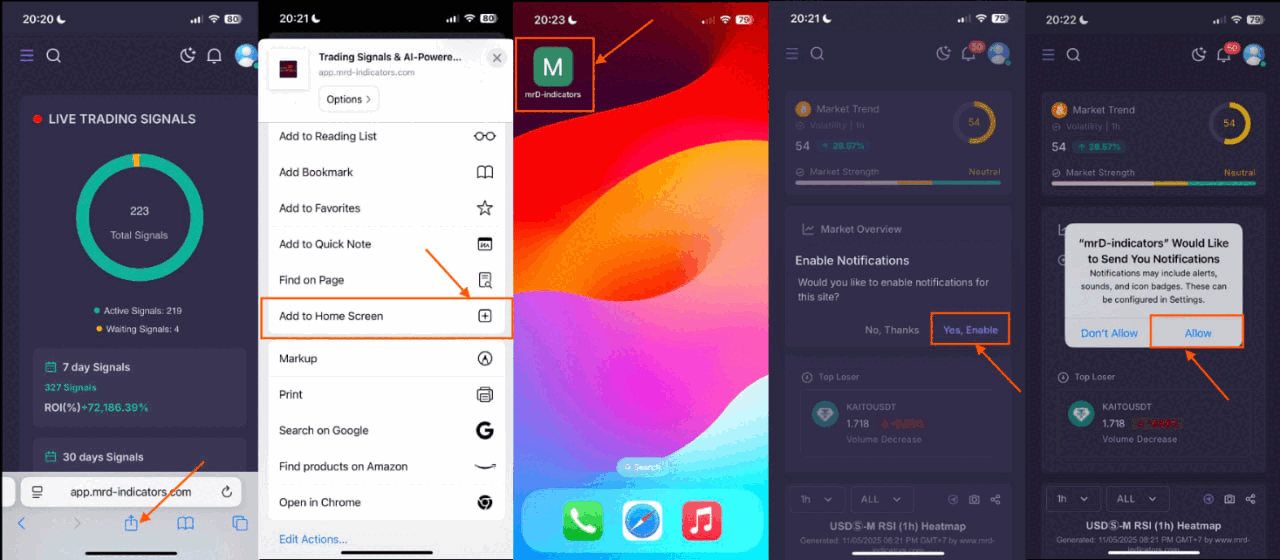 iOS install flow: Safari → Share → Add to Home Screen → enable notifications.
After install, the chart launches full-screen — no Safari address bar, no tab strip. Notifications come through the standard iOS notification centre.
iPadOS — iPad, Safari
iPadOS uses the same Safari install path as iPhone, with the share button living in a slightly different spot.
- Open Safari on your iPad and visit app.mrd-indicators.com.
- Tap the Share icon — top-right corner of Safari on iPadOS.
- From the share sheet, tap Add to Home Screen.
- Confirm the name and tap Add.
- Launch from the home screen, then enable notifications when prompted.
Tip. On iPad the install also unlocks Stage Manager / Split View windowing — you can park the chart on the left and an exchange app or trading-view tab on the right. Full-screen rendering at iPad-Pro resolution looks identical to a small laptop.
Android — Chrome, Edge, Samsung Internet
- Open Chrome (Edge and Samsung Internet work identically) and visit app.mrd-indicators.com.
- Tap the three-dot menu (⋮) in the top-right.
- Tap Install app (older versions say Add to Home screen).
- Confirm Install when prompted. Android will register the app properly — not just a shortcut — so it appears in the app drawer and the recent-apps switcher with its own icon.
- Launch the mrD-Indicators icon, open the menu (☰), and enable notifications when prompted.
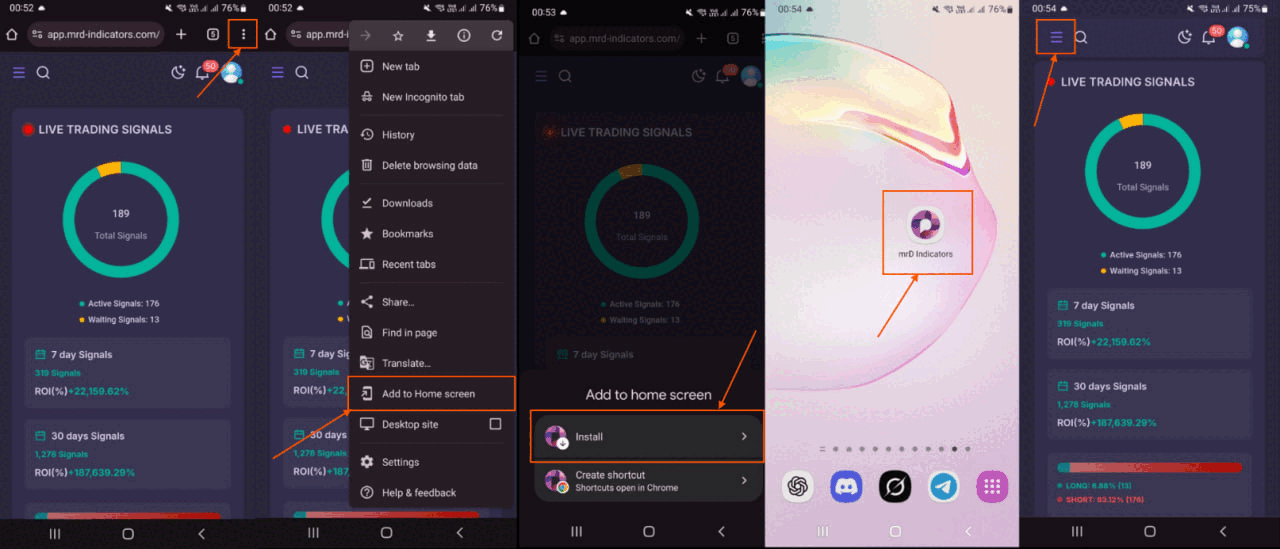 Android install flow: Chrome → ⋮ menu → Install app → enable notifications.
Once installed, the app launches full-screen and notifications fire through the standard Android notification shade. Long-press the icon for the standard Android shortcut menu.
One account, every device
Whichever combination of devices you install on, the account is the same and the data is the same:
- Sign in once per device (see Register an account). You stay signed in until you log out manually.
- Watchlists, chart layouts, indicator settings, and alert rules sync via the cloud. Update on one device, the others catch up within seconds.
- Notifications fan out — an alert created on desktop fires on the phone too, and vice versa, on every device where notifications are enabled.
- The autotrade engine runs server-side. You can close your laptop, the bot keeps running. Open the iPad later to check on it without losing any state.
Why install instead of bookmarking?
A regular browser tab also works — but installed gives you four wins that matter for a trading workstation:
| Capability | Browser tab | Installed PWA |
|---|---|---|
| Full-screen chart, no address bar | No | Yes |
| Dedicated app icon / taskbar / dock entry | No | Yes |
| Native push notifications when closed | Limited (iOS especially) | Yes |
| Sandbox isolated from your other tabs | No | Yes |
| Survives accidental tab-close | No | Yes |
For desk-bound trading the difference is small. For mobile and tablet — where the OS aggressively suspends browser tabs in the background — installation is the difference between getting a signal in real time and finding it two minutes later when you reopen Safari.
Troubleshooting
- "Install" or "Add to Home Screen" doesn't appear. Make sure you're on
app.mrd-indicators.com(not the landing site atmrd-indicators.com), and that the page has fully loaded. Refresh once if needed. - iOS: it's only in Safari. iOS reserves PWA install for Safari only. Chrome / Firefox on iOS can't install — open the page in Safari to add it.
- Notifications don't fire on iOS. iOS only allows PWA notifications if the app was added to the home screen AND you tapped through the permission prompt on first launch. If you skipped it, delete the icon and re-add the app.
- Android: the icon launches a browser tab instead of the app. That means Add-to-Home-Screen made a shortcut rather than installing the PWA — uninstall the shortcut, repeat the install via the ⋮ menu's Install app action.
- Desktop: the install icon is missing in the address bar. Some Chromium variants hide it; open the ⋮ menu → Save and Share → Install mrD-Indicators (Chrome) or ⋮ → Apps → Install this site as an app (Edge).
- Still stuck? Email [email protected] with your device + OS + browser version and we'll walk you through it.