Signal Live Monitor
The live signal feed and Semi-Auto approval queue. Every incoming signal lands here with entry, SL, and the full six-level TP ladder. In Semi-Auto, approve / reject each card; in Full-Auto, the same feed shows what the engine just fired.
The Signal Live Monitor is the live feed of every signal the engine has accepted under your current config. In Semi-Auto, each card carries Approve / Reject buttons and the engine waits for your decision. In Full-Auto, the same cards appear but the buttons are replaced by execution status — useful for watching what the engine is doing in real time.
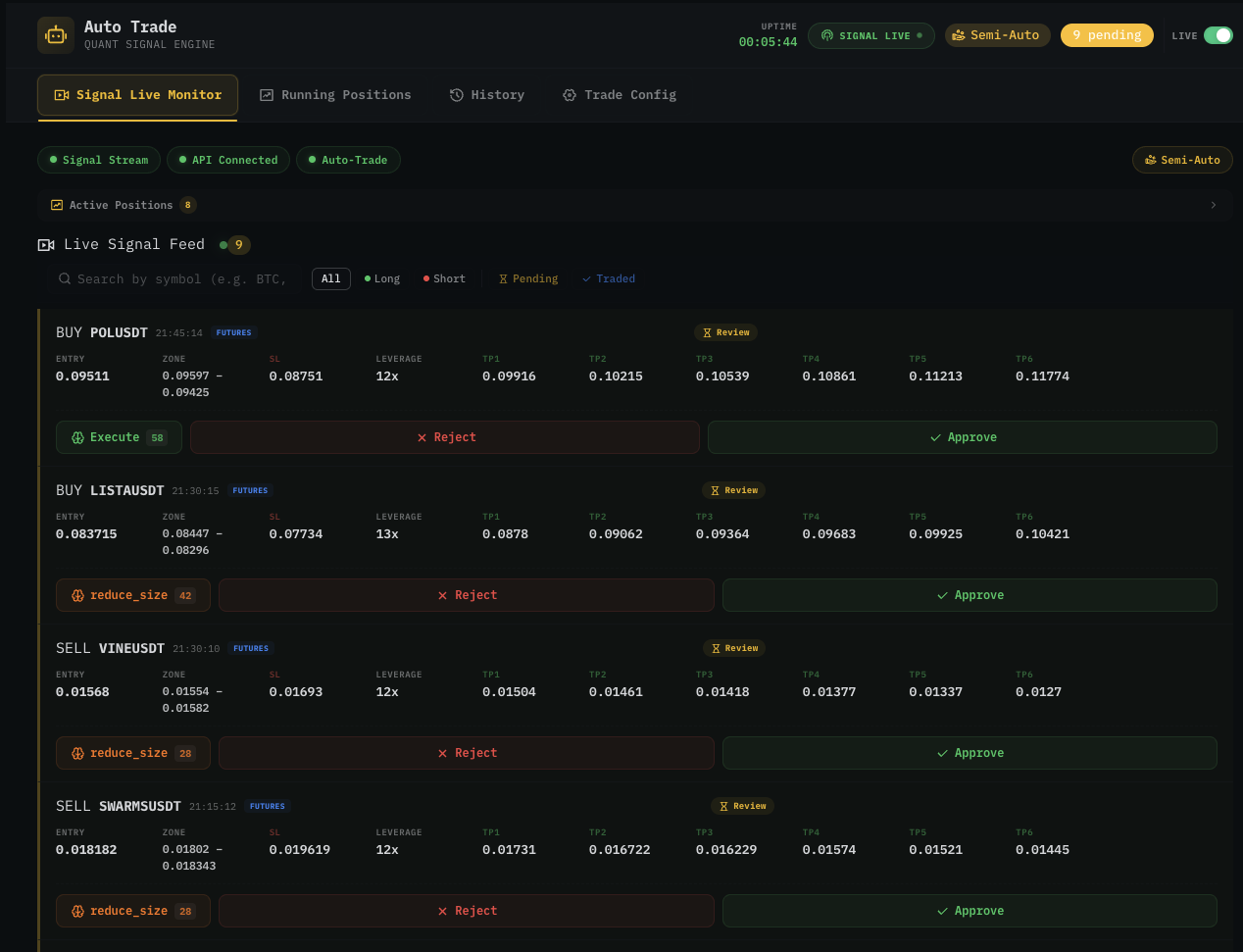
Pending card anatomy
Each pending signal renders as a single card with all the data you need to decide in one glance:
| Region | What it shows |
|---|---|
| Header | Side chip (BUY / SELL), symbol (e.g. POLUSDT), age (21:45:14), instrument tag (FUTURES). |
| Entry | The signal's target entry price. |
| Zone | The full entry zone range (low — high) — where limit orders will sit. |
| SL | The stop-loss price. |
| Leverage | Suggested leverage from the signal (e.g. 12x, 13x). |
| TP1 — TP6 | The six take-profit prices the engine will deploy. |
| AI badge (optional) | A small score chip — Execute 58, reduce_size 42, Review — reflecting the AI Agent's confidence call. |
| Approve (green) | Fires the full order sequence (entry + SL + all active TPs). |
| Reject (red) | Discards the signal silently. |
The same fields are visible whether the card is in the queue (Semi-Auto pending) or just-fired (Full-Auto). Cards stay in the feed for the lifetime of the position so you can scroll back through what happened.
Filtering the feed
The top toolbar above the cards lets you narrow what shows up:
| Filter | What it does |
|---|---|
| Search by symbol | Live filter by ticker substring — type BTC to see only BTC pairs. |
| All / Long / Short | Side filter. |
| Pending | Signals waiting for action (Semi-Auto). |
| Traded | Signals already fired — the engine has placed orders on Binance. |
| Skipped (when present) | Signals dropped before firing, with the reason (max positions reached, leverage out of range, AI score below threshold, etc.) — useful for debugging your filter setup. |
Combine filters: Long + Pending shows only long signals waiting on you.
Approve workflow in Semi-Auto
- A new signal arrives → a card appears at the top of the feed.
- (Optional but recommended) click the symbol or a chart button on the card to open the symbol in the Chart Terminal with all the proposed lines (entry, SL, TP1–TP6) already overlaid.
- Glance at:
- Is the entry near a real structural level (S/R zone, prior swing)?
- Is the SL at a level that will survive normal noise?
- Where are TP1 and TP2 relative to the next resistance / support?
- What does the 1H / 4H trend say — is this trade with the flow or against it?
- What do the Whales Screener and Alt Screener say about this symbol right now?
- Approve → the engine immediately:
- Places the entry order(s) according to your Entry Strategy (market + limits or limits only).
- Places the stop-loss order at the signal SL.
- Places one order per active TP level with its allocated volume.
- Adds the position to Running Positions.
- Reject → the card disappears from the pending list. No order placed.
The traders who consistently profit from Auto Trade do not skip step 3. Opening the chart for 30 seconds before approving is the single highest-impact habit you can build. See Tips for profitable auto trading.
What Review and the score badges mean
Some cards carry small annotations from the AI Agent:
| Badge | Meaning |
|---|---|
| Review | The signal is healthy but worth a chart check before approving — e.g. it fires counter-trend, or near a key level. |
| Execute (with a score) | High-conviction signal. AI Agent thinks the layers are well-aligned. Still worth a chart glance — a high score does not guarantee profit. |
| reduce_size (with a score) | The signal fires but the AI Agent suggests sizing smaller than your config volume. In Full-Auto with AI Controls on, the engine reduces the order size accordingly. |
The exact thresholds and labels are tuned by the AI Agent settings on the Trade Config — you do not need to memorise them. Treat the badge as a hint, not a verdict.
Full-Auto mode behaviour
In Full-Auto, the Signal Live Monitor still renders every signal as a card, but:
- Approve / Reject buttons are replaced by execution status (
Filled,Working,Failed). - The card shows the actual fill prices and the working order IDs.
- Skipped signals still appear in the
Skippedfilter with their drop reason — useful for confirming the engine's filter is doing what you expect.
The feed becomes a live ledger of every order action — equivalent to watching a tape, scoped to your filtered signals.
Approval expiry
Signals have a validity window. Approving an old signal is a known foot-gun:
| Card age | Status |
|---|---|
| < 60s | Fresh. Approve fires at the live entry zone. |
| 60s — a few minutes | Stale. The market has likely moved — your fill may not be at the signal price. |
| Past the signal's TTL | The card is moved to Skipped automatically. |
If the entry price has drifted significantly from the signal price by the time you click Approve, the fill happens at the current market — not at the signal-time price. Approving stale signals is one of the most common Semi-Auto mistakes.
Status pills above the feed
Right above the cards, three quick-check chips:
| Chip | Meaning when green |
|---|---|
| Signal Stream | The signal-hub WebSocket is connected and receiving. |
| API Connected | Your Binance API key is reachable and recently used successfully. |
| Auto-Trade | The engine is armed (LIVE is on, plan is active, prerequisites met). |
Any chip turning yellow / red is a reason to investigate before approving anything. See Toasts & status feedback.
Common pitfalls
- Approving stale prices — you walked away for 5 minutes, came back, batch-clicked Approve on cards from 4 minutes ago. Half the entries get bad fills. Always re-check the chart on a card older than ~30 seconds.
- Approving without opening the chart — by far the most common reason for unforced losses. The signal card alone is not enough context.
- Filling the queue with
Approve all— there is no bulk-approve button (intentionally). One signal at a time, one chart check at a time. - Treating
reduce_sizeas a strong signal — it is the opposite. The AI Agent is telling you it has reservations. Lean conservative on those cards. - Trying to debug "why didn't this signal fire?" from memory — open the
Skippedfilter. The reason is always logged there.
What's next
- Running Positions — manage the trades after you approve.
- Trade Config — adjust filters if too many signals skip or too many fire.
- Tips for profitable auto trading — the chart-first habit in detail.