Timeframes
Crypto, FX, and custom timeframes in the chart terminal. Built-in presets, multi-TF context badges, and how timeframe state behaves across panes, replay, and indicators.
The timeframe menu in the top toolbar controls how candles are bucketed and, by extension, how every indicator computes. The terminal ships crypto and FX presets out of the box plus a custom-TF field so you can pin unusual buckets (e.g. 7H, 3D, 6H). This page covers the presets, the multi-TF context badges, replay rules, and the per-pane vs. global decisions.
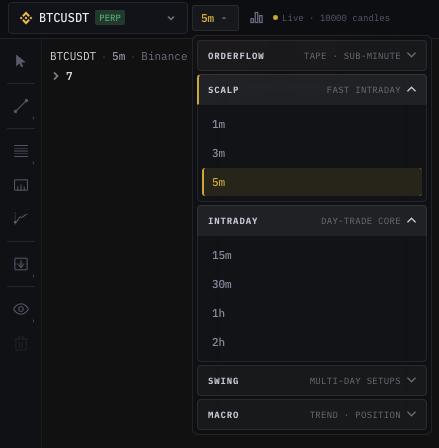
Opening the menu
Click the TF chip in the top toolbar (the one showing 1H, 5M, etc.). The menu teleports below the trigger with three sections:
- Quick row — the four TFs you use most, configurable.
- All TFs — the full preset list for the active market.
- Custom — a free-form input.
Or press T anywhere in the terminal to open it directly.
Crypto presets
| Group | Timeframes |
|---|---|
| Sub-minute | 1s, 5s, 15s, 30s (Tick · Heatmap / Footprint friendly). |
| Minute | 1m, 3m, 5m, 15m, 30m. |
| Hour | 1h, 2h, 4h, 6h, 8h, 12h. |
| Day+ | 1D, 3D, 1W, 1M. |
Sub-minute TFs are only available on exchanges that publish them in their public stream. For other exchanges the sub-minute group is greyed out.
FX presets
| Group | Timeframes |
|---|---|
| Minute | 1m, 5m, 15m, 30m. |
| Hour | 1h, 4h. |
| Day+ | 1D, 1W, 1M. |
FX doesn't bucket below 1m in our feed — the menu hides the sub-minute group when an FX symbol is active.
Custom timeframes
The Custom field at the bottom of the menu accepts:
- An integer plus a unit —
7H,45M,3D,90M,2W. - Decimal hours/minutes are not supported — use the smaller unit (
90Mnot1.5H). - Maximum bucket size is
1M(one calendar month).
Custom TFs are saved per pane. You can have a 7H custom TF on pane 1 and the standard 4H on pane 2 in the same multi-pane layout.
Quick row
The four TFs above the full list are the quick-access slots. Tap any one to switch the active pane to that TF immediately.
To customise the slots:
- Right-click any TF in the full list → Pin to quick row.
- Or open the cog menu inside the TF menu → Edit quick row → drag-reorder.
Slots persist per account, not per pane — the same four quick TFs appear in every pane.
Multi-TF context badges
Some indicators paint a small TF badge under the symbol name (e.g. 4H ▲, 1D ▼). These are higher-TF context that the indicator reads from a different aggregation. Examples:
- mrD-RSI Pullback — shows the higher-TF RSI bucket so you know if your 15M entry is aligned with the 4H regime.
- EMA cloud — shows the 1D EMA stack direction.
- mrD-Signals Premium — shows the HTF trend lock.
The badges are read-only — they do not change the active TF on the chart. To switch to the HTF view, use the TF menu.
Behaviour across surfaces
Replay mode
Switching TF while replay is active reseeds the replay buffer at the new TF and resumes from the equivalent timestamp. You do not lose your replay position — just the resolution changes. See Replay mode for the full behaviour.
Indicators
Every indicator recomputes from scratch when the TF changes — there is no carry-over of the previous TF's state. For heavy indicators this can take 100-400 ms; you may see a brief "computing" placeholder.
Heatmap
Heatmap aggregation is independent of the candle TF. Switching the candle TF does not re-aggregate the heatmap; the heatmap continues at its own configured resolution (set in the heatmap slider).
Alerts
Indicator alerts are TF-scoped — an alert configured on RSI 14 / 1H only fires on 1H closes, regardless of what TF you have open on the chart. Switching TF on the chart does not move the alert. To re-arm an alert on a different TF, open the alerts dialog.
Auto-trade rules
Autotrade strategies are tied to a TF at the strategy level, not the chart's TF. Switching chart TF does not retarget any running bot. See Auto Trade for the strategy → TF binding.
Per-pane state
TF is per pane. Each pane remembers its TF independently. A common multi-pane workflow:
- Pane 1: 4H (HTF context)
- Pane 2: 1H (mid-TF)
- Pane 3: 15M (entry TF)
- Pane 4: 5M (execution TF)
Switch the TF on any one pane without disturbing the others.
Common questions
Why does 1s / 5s only show on some exchanges? The sub-second buckets need raw trade ticks. Some exchanges throttle their public trade stream or don't publish microsecond timestamps; on those venues the sub-minute group is unavailable.
Can I have a TF based on volume or ticks instead of time? Not in the standard chart engine. Footprint modes do volume-bucketed cells inside time-based bars — see Chart types. For pure depth-stream visualisation use Tick · Heatmap.
Custom TF 7H doesn't line up with the daily session.
Custom TFs anchor at UTC midnight by default. To anchor at a different hour, prefix with @HH:MM — e.g. @09:00 7H starts the 7-hour buckets at 09:00 UTC. Use this for session-aligned TFs (e.g. NY-aligned).
How many custom TFs can I pin? Up to eight per pane. Beyond that, the oldest unused custom TF is rotated out.
Keyboard shortcuts
| Key | Action |
|---|---|
T | Open the TF menu. |
1 … 9 | Switch to quick-row slot 1…9 while the TF menu is open. |
Esc | Close the TF menu. |
Shift + ↑ / ↓ | Step to the next / previous TF in the preset list. |
What's next
- Chart types — Candlestick vs. the Footprint modes vs. Tick · Heatmap.
- Replay mode — replay across TFs.
- Indicator panel basics — most indicators are TF-sensitive; pick the right TF before stacking them.