Symbol search & watchlist
How the symbol picker, multi-tab watchlists, and search dropdown work in the chart terminal. Quote currencies, exchange filters, favorites, drag-to-pane, and search shortcuts.
The symbol picker on the left of the top toolbar is how every pane gets pointed at the right pair. It does three jobs at once: search the venue universe, organize favorites in multiple watchlist tabs, and surface live quotes for everything you are watching so you do not need a separate "markets" page open. This page documents the dropdown, the watchlist tabs, the quote columns, drag-to-pane, and the keyboard shortcut.
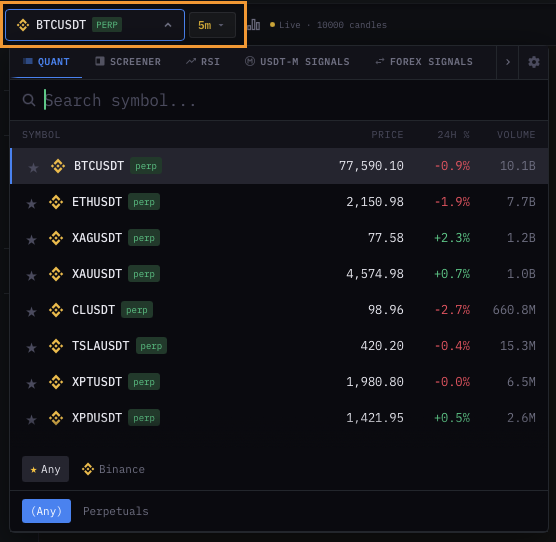
Opening the picker
- Click the symbol name in the top toolbar.
- Or press
/anywhere in the terminal — focuses the search input directly.
The dropdown teleports below the trigger and stays open until you click outside, press Esc, or pick a symbol.
Anatomy
| Region | What it does |
|---|---|
| Search input | Live-filters the universe by symbol, base asset, or quote asset. |
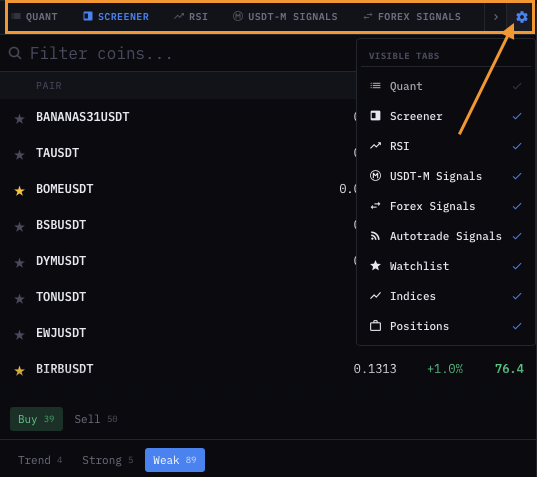
| Quote tabs | USDⓈ-M perpetuals, Spot, Coin-M futures, FX — depending on the exchange you are connected to. |
| Watchlist tabs | Your saved tabs of favorites. Each tab is an independent list. |
| Quote columns | Live last price, 24-h change %, volume, indicator badges. |
| Cog menu | Per-watchlist settings: rename, clear, reorder columns, set a sort. |
Search
Search is substring + token aware. Type btc and you get every pair where btc is the base or the quote. Type usdt and you get every USDT-quoted pair. Type btc usdt (two tokens) and you get only BTCUSDT (and BTCUSDC is excluded — the second token must also match).
- Search is case-insensitive.
- Search ignores separators —
btcusdt,btc-usdt,btc/usdtall match the same row. - Search respects the active quote tab — switching from USDⓈ-M to Spot rescopes the universe.
Search-only mode
When the input has any text, the watchlist tabs disappear and the dropdown shows the global filtered universe instead. Clear the input or press Esc to return to your watchlist view.
Watchlist tabs
You can keep several watchlists open as tabs across the top of the dropdown. Each tab is just a list of symbol strings (e.g. BINANCE:BTCUSDT.P). Tab names are free-form — common conventions:
- Majors — BTC, ETH, SOL, BNB, XRP.
- Alts watch — pairs you trade weekly.
- News watch — pairs you are tracking around a catalyst.
- Funding — funding-rate plays.
- Portfolio — symbols you hold spot.
Creating a tab
- Click the
+icon at the end of the tab row. - Give it a name. Names must be unique within your account.
Renaming, deleting, reordering
- Right-click a tab → Rename / Delete.
- Drag the tab horizontally to reorder.
Adding a symbol to a watchlist
There are three ways:
- From inside the dropdown — type a symbol, then click the star icon on the row.
- From the chart canvas — right-click the chart → Add to watchlist → pick the tab.
- From any signal hub or scanner — the row's overflow menu has Add to watchlist with the same target picker.
Removing a symbol
- Hover the row in the watchlist → click the filled star to unfollow.
- Or right-click the row → Remove from watchlist.
Quote columns
By default each watchlist row shows:
| Column | What it shows |
|---|---|
| Symbol | Exchange + base + quote, e.g. BINANCE:BTCUSDT.P for the BTC perpetual. |
| Price | Last trade price, updated live. Greens / reds on tick direction. |
| 24h % | 24-hour change vs. UTC midnight, color-coded. |
| 24h vol | 24-hour quoted volume in the quote currency. |
| Indicator badges | Optional — toggle in the cog menu. Shows live indicator state (RSI bucket, signal triggers, divergence flags). |
Sorting
Click any column header to sort the watchlist by that column. Sort persists per tab — you can have Majors sorted by 24h % desc and Alts sorted by 24h vol desc at the same time.
Customising columns
The cog menu on each tab lets you toggle the indicator-badge columns on or off. Useful when you want a clean price-only view for your Majors tab but a "what's firing right now" view for your Alts tab.
Picking a symbol
Click a row to load that symbol into the active pane. The active pane is the one with the subtle border highlight — usually the one you most recently interacted with. The dropdown closes automatically.
In a multi-pane layout you can also:
- Drag a symbol row from the dropdown onto a specific pane to load it there.
- Right-click a row → Open in new pane if your layout has a free pane slot.
Quote tabs (USDⓈ-M / Spot / Coin-M / FX)
The strip of tabs above the watchlists scopes the universe. Switching tabs:
- Filters the search to that market.
- Switches the watchlist to the matching account context (USDⓈ-M positions live separately from Spot holdings).
- Persists per browser session — your last quote tab is restored on next open.
Available tabs depend on the exchange you are connected to. A Binance connection exposes USDⓈ-M, Spot, and Coin-M. FX appears only if your account has an FX feed configured.
Pinned symbols across layouts
Each pane remembers its own pinned symbol per layout. Switching from a 1-pane layout to a 2v layout restores the two symbols you last had in 2v — not duplicates of the current 1-pane symbol. This is a deliberate UX choice so that your multi-pane workspaces don't get wiped every time you jump back to single pane.
Keyboard shortcuts
| Key | Action |
|---|---|
/ | Focus the search input. |
Esc | Close the dropdown (or clear search if input is focused with text). |
Enter | Load the first match into the active pane. |
Up / Down | Move row selection. |
Tab | Move between watchlist tabs while focus is inside the dropdown. |
Common questions
Can I import a watchlist from TradingView? Not directly. Use the TradingView export to a CSV, then paste symbols one by one into the watchlist tab. We are tracking a one-click import — see the roadmap.
Why does my watchlist show only USDⓈ-M perpetuals but search shows Spot too? The watchlist is scoped to its tab's quote market by default. To mix Spot and Perp in one tab, open the cog menu and enable Allow mixed markets.
Symbols disappeared after I switched exchange. Watchlists are scoped per exchange. Switching back restores them. If you genuinely lost a list, check the cog menu → Restore from backup — the terminal keeps the last seven days of watchlist snapshots.
What's next
- Timeframes — pair the symbol with the right TF.
- Indicator panel basics — start stacking indicators on the symbol you just opened.
- Quick trade & floating bar — place orders on the symbol without leaving the chart.