Multi-pane layouts
Split the chart terminal into up to six independent panes. Picks from 15 grid templates — single, vertical splits, horizontal splits, mosaics, and the 4×4 / 6-pane mosaic. Each pane runs its own engine.
The chart terminal can split into up to six panes so you can watch BTC 1H next to ETH 5M next to SOL 15M without flipping tabs. Each pane is an independent chart engine with its own symbol, timeframe, indicators, drawings, and side-panel state — only the account, balance, positions, and alerts are shared. This page documents the 15 grid templates, how per-pane state works, and the rules that keep multi-pane layouts performant.
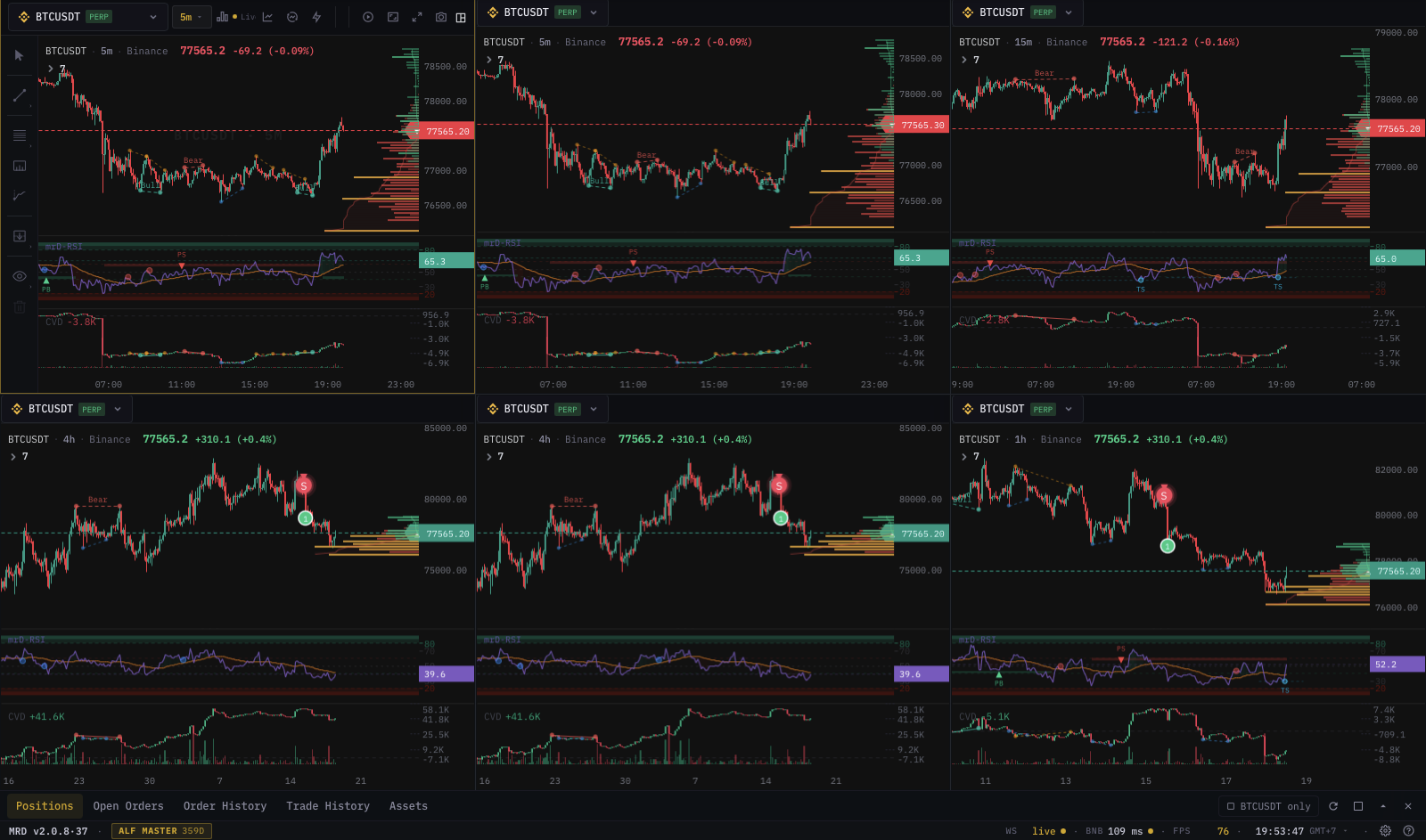
Opening the layout selector
Click the Layouts icon in the top toolbar (top-right cluster, two-rectangle icon). A panel teleports next to the button with three sections:
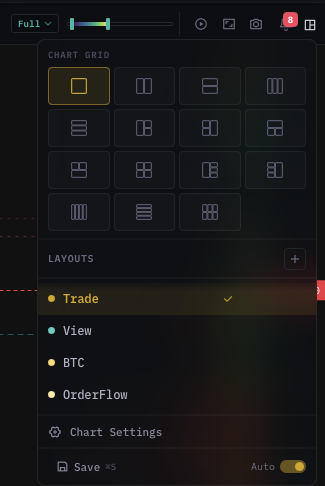
- Chart Grid — the 15 grid templates.
- Per-chart layouts — your saved workspace presets (indicators + drawings + settings) for the single-pane engine.
- Reset workspace — return to the default single-pane BTCUSDT / 1H view.
The currently active grid is highlighted in amber.
The 15 grid templates
| ID | Shape | Use it for |
|---|---|---|
| 1 | Single pane | The default — full real-estate focus on one symbol. |
| 2v | Two columns | Compare two symbols side-by-side at the same TF. |
| 2h | Two rows | Same symbol on two different TFs (HTF on top, entry TF on bottom). |
| 3v | Three columns | Three majors at a glance. |
| 3h | Three rows | One symbol on three TFs (e.g. 4H / 1H / 15M). |
| 3-1l-2r | Big-left + two stacked right | One primary chart, two reference charts on the side. |
| 3-2l-1r | Two stacked left + big-right | Two reference charts left, one primary chart right. |
| 3-1t-2b | Big-top + two side-by-side bottom | One HTF on top, two entry-TF symbols below. |
| 3-2t-1b | Two top + big-bottom | Two reference charts on top, primary entry chart on the bottom. |
| 4 | 2 × 2 mosaic | Four symbols equal weight. |
| 4-1l-3r | Big-left + three stacked right | One primary plus a side stack of three references. |
| 4-3l-1r | Three stacked left + big-right | Mirror of above. |
| 4v | Four columns | Wide monitors: four symbols at a glance. |
| 4h | Four rows | One symbol across four TFs (1W / 1D / 4H / 1H). |
| 6 | 3 × 2 mosaic | Six symbols equal weight — the widest layout. |
Minimum width
Multi-pane layouts need horizontal room. Below ~992 px of viewport width the layout selector greys out everything except the single-pane template — each pane has a per-pane toolbar that needs ~240 px to fit. Drag the browser narrower than 992 px and the page auto-collapses to single-pane; widen back and your previous layout is restored.
Mobile
Mobile is fixed at single pane. The grid section in the layout selector shows the resize hint and disables every multi-pane template.
What is independent per pane
Each pane runs its own chart engine. The following state is per-pane:
- Symbol
- Timeframe
- Chart type (candles, bars, footprint, …)
- Indicator stack and per-indicator settings
- Drawings (trendlines, fibs, markers)
- Side-panel tab and side-panel data
- Heatmap visibility and sensitivity
- Replay mode (you can have one pane in replay while the rest stay live)
- Theme overrides specific to that chart (rare — most theme settings are global)
What is shared across panes
These are global to your account and not duplicated per pane:
- Exchange API connection
- Account balance, margin, and leverage
- Open positions and working orders (visible from every pane that matches the symbol)
- Conditional orders
- Indicator alerts and screener alerts
- Signal subscriptions
- Bottom panel content (positions, orders, alerts list)
- Status-bar account telemetry
- Sound / mute master toggle
- Theme (dark / light)
Clicking BUY in any pane places one order against your one account. Three BTC panes do not multiply your size.
Pane interactions
Activating a pane
Click anywhere inside a pane (canvas, toolbar, side panel) to make it the active pane. The active pane gets a subtle border highlight and is the one the global toolbar shortcuts target.
Resizing
Drag the dividers between panes. Each grid template has its own divider set — vertical splits expose vertical dividers, horizontal splits expose horizontal dividers, mosaics expose both. Sizes are saved to the layout preset, so the proportions persist between sessions.
Closing the side panel per pane
Each pane has its own side panel. Collapse it independently — useful in 4-pane or 6-pane layouts where the side panel would otherwise eat half the chart real-estate. The collapse state is saved per pane per layout.
Swapping symbols between panes
Drag a symbol from the symbol search into a pane to swap it. The targeted pane updates while the others stay put.
Per-chart layout presets
Below the grid section in the layout selector is a list of per-chart layouts. These are workspace presets owned by the single-pane engine — a saved snapshot of indicators, drawings, and chart settings. Apply one and the active pane loads that preset.
Use cases:
- A "Scalper" preset with Footprint cells + VWAP + tight EMAs (or a separate pane in Tick · Heatmap).
- An "Order flow" preset with depth heatmap + VRVP + walls + CVD profile.
- A "Pullback hunter" preset with RSI Pullback + EMA cloud + S/R volume zones.
Per-chart presets are hidden in multi-pane layouts because each pane has its own engine and applying a single preset to multiple panes would be ambiguous. To apply a preset across panes, switch to single pane first.
Saving and resetting
The terminal auto-saves layout, symbols, timeframes, indicators, drawings, and panel sizes whenever you make a change. A small ✓ toast appears next to the layout button when a save lands; a … toast appears while it is in flight. The save round-trips to the backend so your workspace is available on every device tied to the same account.
Reset workspace at the bottom of the layout selector clears the current layout back to the default single-pane BTCUSDT / 1H view. It does not delete:
- Saved per-chart presets (still in the per-chart list).
- Indicator alerts and screener alerts (still in the alerts inbox).
- Account-level settings (theme, sound, API connection).
Performance considerations
Each pane streams its own price, depth, footprint, and indicator data. Six panes means six WebSocket subscriptions, six chart engines, six side panels. On modern hardware (laptop ≤ 5 years old, 16 GB RAM, modern GPU) six panes stay smooth; on older hardware you may want to stick to three or four.
If a pane feels sluggish:
- Disable the heatmap on that pane (toolbar slider → 0%).
- Turn off footprint cells.
- Close the side panel on panes you are not actively reading.
- Reduce the indicator count — every indicator runs against every tick.
The terminal will not warn you about performance — it just renders. Trust your frame-rate.
Keyboard shortcuts
L— open the layout selector.Esc— close the layout selector.Tab— cycle through panes (active-pane highlight moves).Ctrl + 1…Ctrl + 6— focus pane 1…6 directly.
What's next
- Symbol search & watchlist — populate each pane with the right symbol.
- Timeframes — pick the TF mix that suits multi-pane work (HTF top + entry-TF bottom).
- Settings dialog & themes — global chart preferences that apply to every pane.