Replay mode
Step through historical bars at any speed with full indicator and order-flow context. Speed control, jump-to-date, replay-while-live, and per-pane replay isolation.
Replay mode lets you step through historical candles bar-by-bar (or at adjustable speed) while every indicator, footprint cell, heatmap, and signal recomputes against the replayed price. This is the backtester's "play" button — useful for studying past setups, training on a strategy, or capturing a moment before it scrolls off the live chart. This page covers the replay bar, speed control, jump-to-date, replay-while-live, and the per-pane isolation rules.
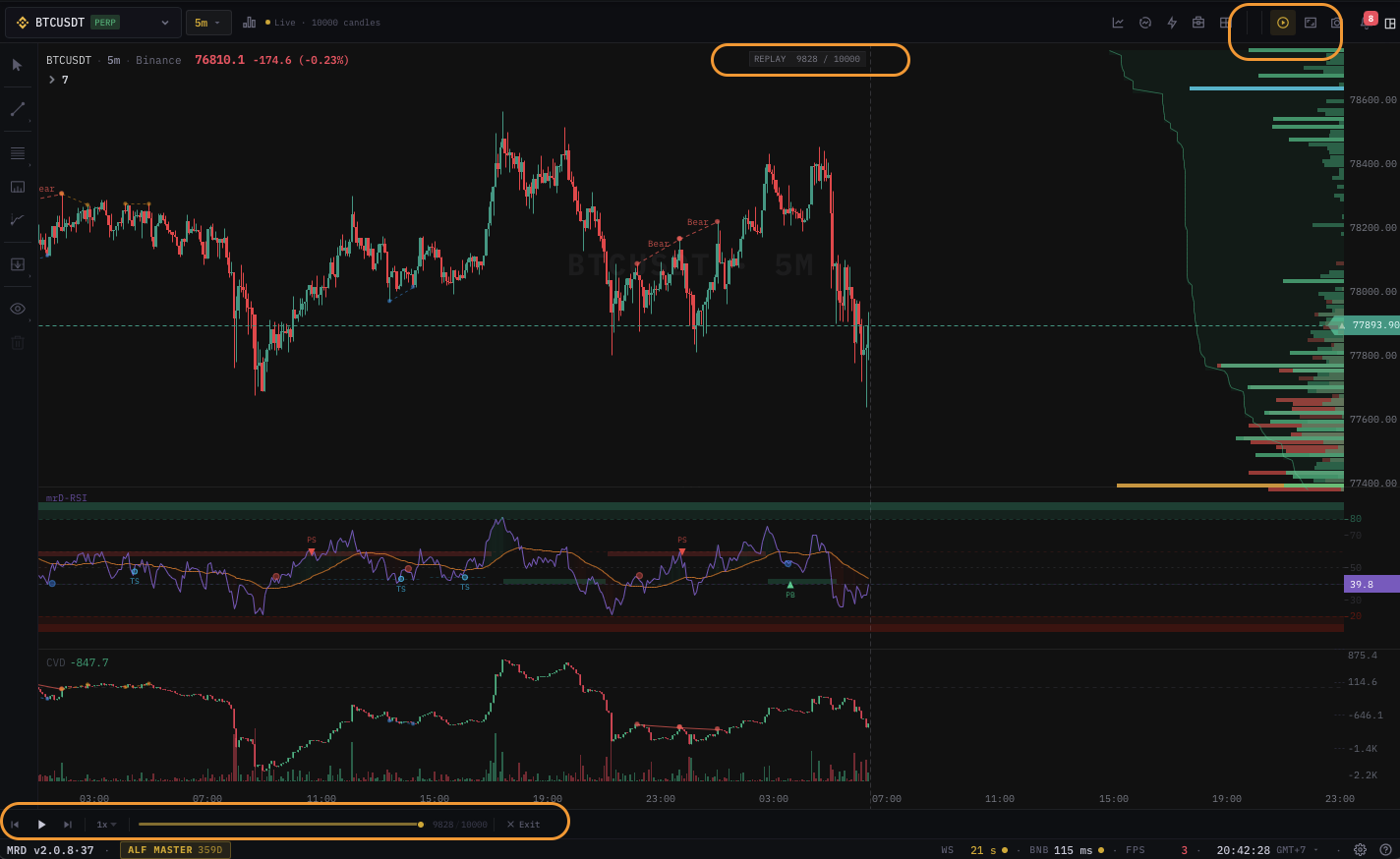
Entering replay
Click the Replay icon in the top toolbar (clock-with-arrow icon) or press R. The active pane drops into replay:
- The chart freezes at the right edge of the visible candles.
- A replay scrubber appears at the bottom of the pane.
- A small "REPLAY" chip appears in the status bar for the active pane.
- The connection is not dropped — live ticks keep flowing to the pane but are queued; you can re-enter live with no gap when you exit replay.
The replay bar
| Control | Purpose |
|---|---|
| Play / Pause | Toggle automatic stepping. |
| Step back | Move one bar earlier. |
| Step forward | Move one bar later. |
| Speed | 0.25× / 0.5× / 1× / 2× / 5× / 10× — bars-per-second at TF-relative pace. |
| Scrubber | Drag horizontally to jump to any bar in the visible window. |
| Jump to date | Date-picker — set an exact UTC timestamp to drop to. |
| Exit replay | Returns to live mode at the most recent bar. |
The bar is teleported to the bottom of the active pane and persists until you exit replay.
What recomputes
When you step in replay, the following recompute against the replayed bar:
- Every indicator (RSI, MACD, EMA, mrD-* engines, custom DeltaDSL scripts).
- Footprint cells (if available in the historical buffer at that resolution).
- Depth heatmap (only available from the date your account first started recording — see "Limits" below).
- Position lines (if you had positions at that date — historical positions are surfaced when you load the relevant date range in the bottom panel).
- Drawings (drawings are time-anchored; they appear when the replayed price reaches their time range).
What does not recompute:
- Live signals (mrD-Signals Premium, AI Live Signals) — these are live-only and pause in replay.
- Live alerts — paused. New alerts won't fire on replayed bars.
- Active orders / positions — these are real; we won't fake-fire orders against historical price.
Speed control
Speeds are TF-relative: at 1× a 1m TF replays one bar per minute, while a 1H TF replays one bar per hour. The TF-relative pacing keeps the "feel" consistent across TFs.
For faster scrubbing use 5× or 10×. For frame-perfect study, use Pause and Step forward / back.
Jump to date
Click the date input in the replay bar to open a date-time picker. Enter a UTC timestamp; the chart drops to that bar instantly. Use this when:
- A signal fired at a known time and you want to study the lead-up.
- You're studying a news event.
- You're cross-referencing a chart from another source (TradingView screenshot, Twitter post).
Jump-to-date respects TF — jumping to 2024-12-08 14:30 UTC on a 1H chart aligns to the 14:00 candle.
Replay-while-live
The terminal lets you keep one pane in replay while other panes stay live. Common workflow:
- Open a 2v layout.
- Drop pane 1 into replay at the date of a known signal.
- Pane 2 stays live on the current price.
- Compare the historical setup (pane 1) against the live tape (pane 2).
This is the fastest way to validate a pattern repetition — you see history and live side-by-side without flipping back and forth.
Per-pane isolation
- Replay state is per pane. Each pane has its own scrubber position, speed, and play/pause state.
- Exiting replay on one pane does not affect the others.
- Multi-pane layouts can have all panes in replay at different timestamps — useful for studying multiple symbols at the same historical moment, or one symbol at multiple TFs simultaneously.
Limits
- Historical depth depends on the TF and the venue. Crypto 1m: typically 18 months back. Crypto 1H: 5+ years. FX: 3-5 years depending on the broker feed.
- Heatmap / footprint history is shallower because it relies on your account's recorded depth/trade buffer. By default we keep 30 days of full-resolution heatmap and 90 days of footprint cells. Older replay shows candles but no heatmap or footprint.
- Custom script outputs are recomputed from candles on the fly — no stored cache. Heavy custom scripts can lag at
10×speed.
Common questions
My indicator paints differently in replay than it did live. Indicators are deterministic and should paint identically. If they don't, the most common cause is a lookahead bug in a custom DeltaDSL script — the script reads future bars during live mode (which it shouldn't) and gets clipped in replay. Use the script editor's lookahead lint to find the violation.
Heatmap is empty in replay. You're replaying a date older than your heatmap retention (default 30 days). Heatmap requires a recorded depth buffer; we don't reconstruct it from candles. Upgrade to a higher-tier plan for extended heatmap history.
Replay drops frames at 10×.
Each step recomputes every indicator. With 8+ indicators stacked, 10× is faster than your machine can render. Drop to 5× or pause and use Step.
Can I export the replayed range as a video? Not built-in. Use OS-level screen capture (macOS QuickTime, Windows Game Bar) — the chart is a normal HTML canvas so any screen recorder works.
Replay won't enter on a Footprint chart at 1m. Replay needs footprint history at that resolution. If your plan doesn't include 1m footprint retention, the chart falls back to candle-only replay. Switch chart type back to Candles to confirm replay still works.
Keyboard shortcuts
| Key | Action |
|---|---|
R | Toggle replay mode on the active pane. |
Space | Play / pause. |
← / → | Step one bar back / forward. |
Shift + ← / → | Step 10 bars back / forward. |
Esc | Exit replay (same as Exit replay button). |
What's next
- Drawing tools — annotate a replayed setup, save it for later study.
- Settings dialog & themes — change candle colors mid-replay without losing scrubber position.
- Indicator panel basics — stack the indicators you want to study before entering replay.