Change your Exness referral
Two officially-supported ways to switch your existing Exness account to the Backcom partner code and start earning 100% daily rebates — open a new account under the same KYC, or request a partner change through Exness Support.
If you already trade on Exness today but the account was opened without our partner code, your existing trades don't earn rebates. Exness does not let you retroactively attach a partner code to a trading account — but they do support two official paths to move you onto the Backcom system. Pick whichever fits your situation.
If you're new to Exness, skip this page and go straight to How to register a new Exness account — that's the cleaner flow.
Quick decision
| Your situation | Use |
|---|---|
| You have a spare email and don't mind re-doing KYC. | Method 1 — register a second account under the same identity. |
| You want to keep your current Exness login and KYC. | Method 2 — request a partner change via Exness Support. |
| You're under 1-3 days from a planned trade. | Method 1 (faster — instant) or wait for Method 2 approval. |
Method 1 — Register a new account with a different email
Exness allows multiple trading accounts under the same KYC identity as long as each uses a different email address. This is the fastest path: a new account under our partner code can be active in 15 minutes.
Steps
- Open the partner referral link:
- Register with a new email address (not the one tied to your existing Exness account).
- Complete the standard KYC flow — same identity document as your existing account; Exness will recognise you and the verification typically clears faster.
- The new account is automatically linked to the Backcom partner code.
After registration
- All trading accounts you open inside the new wallet (Standard / Pro / Raw Spread) are automatically tracked in the rebate system.
- Trades you continue to place on your old account will NOT earn rebates. The partner attribution is at the account level.
- For full step-by-step screenshots of the registration flow, see How to register a new Exness account.
Method 2 — Request a partner change via Exness Support
If you want to keep your existing Exness login (same email, same KYC, same wallet history), Exness Support can change the partner code on your account on request. The process is manual, takes 1-3 business days, and is not guaranteed (it depends on Exness's policies and your trading history) — but it works for the majority of cases.
Step-by-step
1. Open Exness live chat
Go to the Exness website while logged into your account, and open the live chat support widget.
2. Request the partner-change form
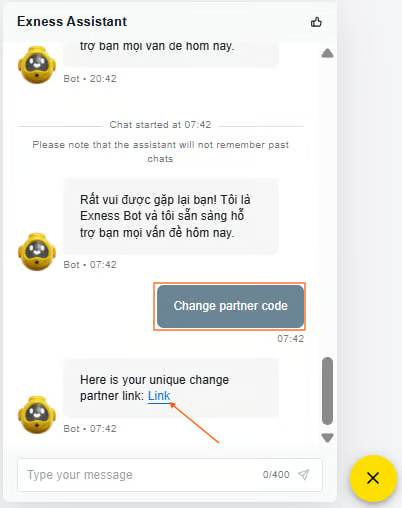
In the chat, send the exact message:
Change partner code
The Exness support bot replies with a one-time URL to the partner-change request form.
3. Fill in the partner-change form
Open the URL from the chat. Fill in the form with these exact values:
| Field | Value |
|---|---|
| Reason | Rebates |
| New Partner's full referral link | https://one.exnessonelink.com/a/ocwk220wuj |
| Where did you find your new partner? | https://mrd-indicators.com/ |
| Comments | Please add any comments (free text — explain briefly why you're switching, e.g. "Joining the Backcom IB rebate program."). |
Click Submit.
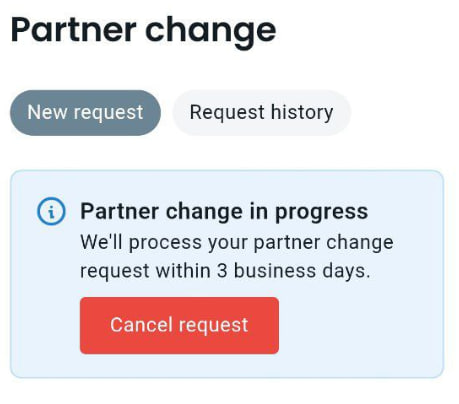
4. Wait 1-3 business days for approval
Exness manually reviews each partner-change request. Approval usually arrives in 1-3 business days; you'll get an email when the change is applied.
The partner-change process is at Exness's discretion. Approval depends on factors like your trading history and active campaign attributions. Most reasonable requests are approved, but Exness reserves the right to refuse without explanation. If yours is refused, fall back to Method 1.
5. Open new trading accounts after approval
Once the partner change is approved, you must open NEW trading accounts for the rebates to start flowing. Your old trading accounts (created before the partner change) will NOT earn rebates — the attribution is recorded at account creation time.
Inside your Exness wallet:
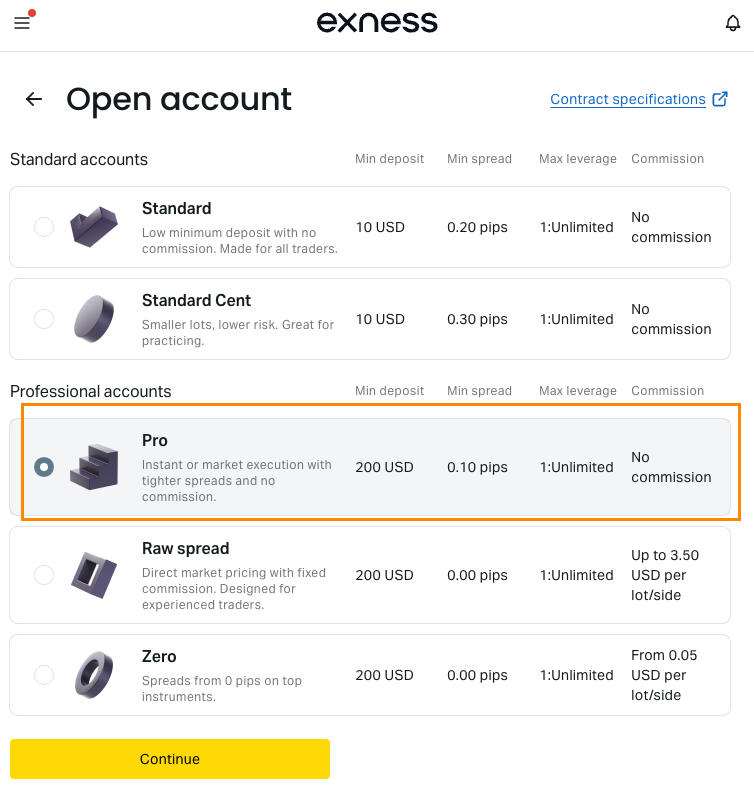
- Open a new trading account (Standard / Pro / Raw Spread — whichever you prefer).
- Connect it to MT4 / MT5 with the new credentials.
- Trade as you normally would.
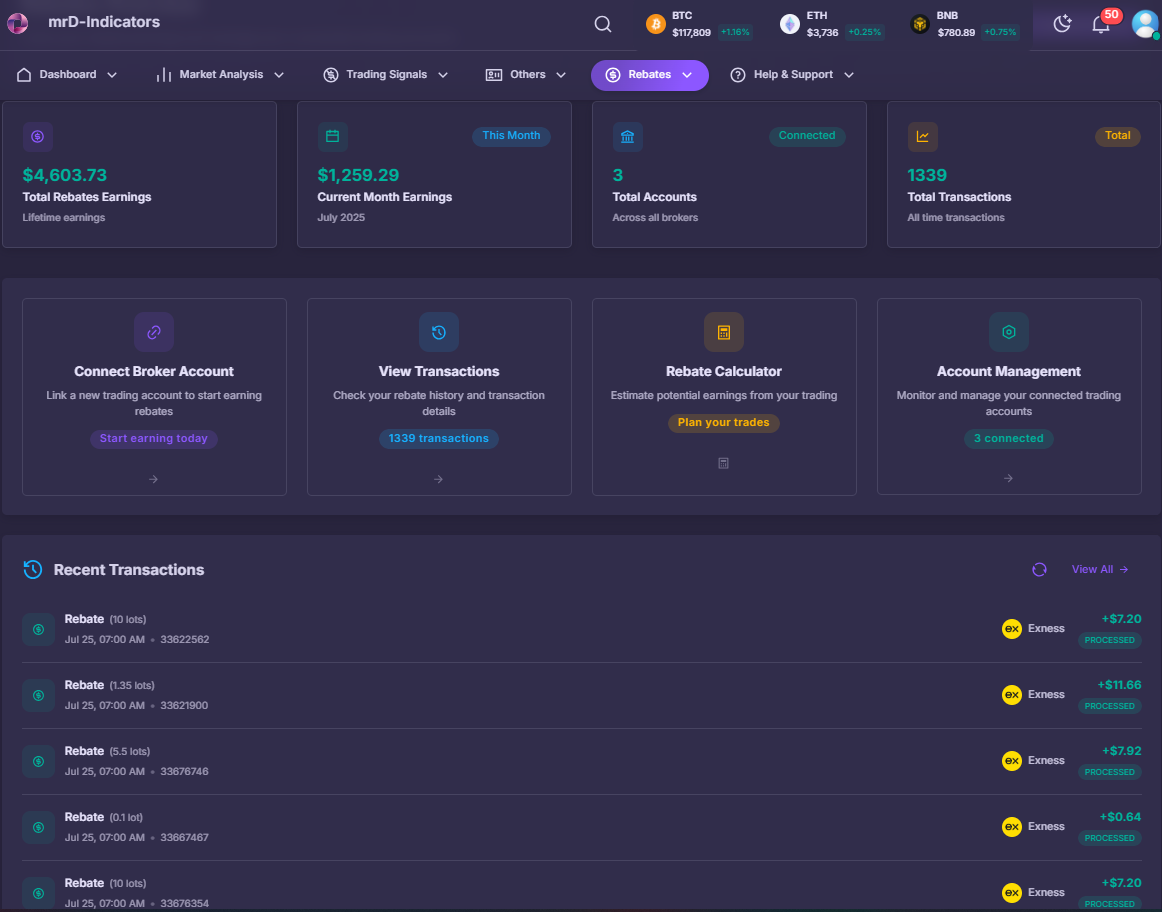
The first rebate line should appear on the new trading account within 24 hours of your first closed trade.
Eligibility summary
| Condition | Eligible for 100% rebates? |
|---|---|
| Trading on the old account before partner change | No |
| Trading on the new account opened under partner code (same KYC, different email) | Yes |
| Trading on a new trading account opened after support-approved partner change | Yes |
| Trading on a trading account opened before support-approved partner change | No |
Common pitfalls
| Pitfall | Why it happens | Fix |
|---|---|---|
| "I changed the partner code but my old account still isn't earning rebates." | Partner attribution is at the trading account level, not the wallet level. Open a NEW trading account after the change is approved. | Open Standard / Pro / Raw Spread account from inside the wallet; trade on that. |
| "Exness rejected my partner-change request." | Reasons vary — recent change history, an active campaign attribution, etc. | Use Method 1 instead — register a fresh account with a different email under the same KYC. |
| "I lost the partner-change form URL." | The chat URL is single-use. | Send Change partner code to the bot again; it issues a fresh URL. |
| "I keep trading on the old account out of habit." | Habit + same login. | Disable the old account's MT4 / MT5 password or transfer balance to the new trading account so there's nothing to trade on the old one. |
| "Approval email never arrived." | Spam folder, or the form was rejected silently. | Check spam. If nothing in 5 business days, send Status of partner change request to Exness support. |
After approval — verify with us
After your first rebate-eligible trade clears and you see the credit in your wallet, the loop is done. If you want a manual confirmation that we see your account in the Backcom IB dashboard, message @mr_doc on Telegram with your new Exness account number and we'll check from our side.
What's next
- Rebates overview — what the program is, how the money flows.
- How to register a new Exness account — the full first-time registration walkthrough.
- Client Trading Support Program — Standard (rebates only) vs Premium (signals + indicators) tiers.
- Forex Signals hub — the signal source most rebate users execute through.