Quick trade & floating bar
Place orders from the chart without opening a separate trade page. The floating trade bar, the quick-trade dialog, conditional triggers, take-profit / stop-loss strips, position lines, and bot-mode switch.
The chart terminal places orders without making you leave the chart. There are two surfaces: a minimal floating trade bar (BUY / SELL with size and leverage) and a full quick-trade dialog (order type, conditional triggers, TP/SL strips, bot-mode switch). Open positions paint as live lines on the chart — entry, average, TP, SL — and you can drag any line to update the corresponding order. This page covers all of it.
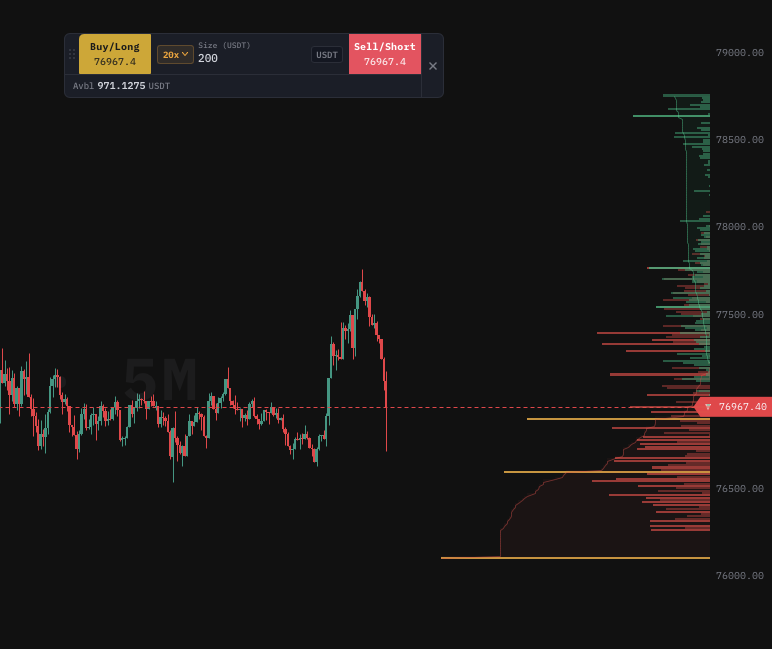
Floating trade bar
The floating trade bar is a compact strip docked over the chart with two large buttons: BUY (long-side green) and SELL (short-side red). Between the two buttons sits the size input and the leverage chip. Click a button and an order is dispatched immediately at the current best-quote.
Enabling the bar
The bar is hidden by default. Open Chart settings → Trade controls → toggle Show floating trade bar. The bar appears in the bottom-right of the active pane and follows the active pane in multi-pane layouts.
What it sends
A BUY / SELL click on the bar dispatches:
- Order type: Market.
- Symbol: Whatever the active pane is showing.
- Side: BUY (long) or SELL (short).
- Size: The value in the size input.
- Leverage: The value in the leverage chip (only applies to perpetuals; ignored on Spot).
- TP / SL: None — the bar is a bare market entry. Use the quick-trade dialog for TP/SL.
The order routes through your connected exchange API. If you have no API connection, the bar's buttons are greyed out with an API Connect tooltip linking to /trading/api-connect.
Drag-to-place
You can also drag the bar's BUY / SELL buttons onto the chart canvas. The drop point's price becomes a Limit order at that price instead of a Market order. Drop above the current price for a Sell-Limit (or Buy-Limit if dropped below for the BUY button). This is the fastest way to scale into a level without typing.
Sizes
The size input accepts:
- Notional in the quote currency (e.g.
1000for $1,000 USDT notional). - Quantity in the base currency, prefixed with
q:(e.g.q:0.05for 0.05 BTC). - Percent of available prefixed with
%(e.g.%25for 25% of available margin). - Fixed-risk prefixed with
r:(e.g.r:1%for "size such that hitting the SL costs 1%" — requires SL to be set, falls back to last known SL).
The default unit is configurable in Chart settings → Trade controls → Default size unit.
Quick-trade dialog
For anything beyond a bare market entry, open the Quick-trade dialog by:
- Pressing
B(buy) orS(sell) — opens the dialog primed for that side. - Right-clicking the chart at a price → Buy at price / Sell at price — opens the dialog with the click price prefilled as Limit.
- Clicking the Trade button in the top toolbar.
- Clicking the BUY / SELL chip on the floating bar with
Shiftheld.
The dialog has three tabs: Market, Limit, Conditional.
Market tab
The simplest tab. Order routes immediately.
| Field | Notes |
|---|---|
| Side | BUY / SELL toggle. |
| Size | Same unit grammar as the floating bar (notional / q: / % / r:). |
| Leverage | Per-symbol leverage; only shown for perpetuals. |
| TP | Optional take-profit price. Sets a reduce-only Limit when the entry fills. |
| SL | Optional stop-loss price. Sets a reduce-only Stop-Market when the entry fills. |
| Confirm | Toggle "show confirmation dialog before sending" — global, set in Chart settings. |
Limit tab
| Field | Notes |
|---|---|
| Side | BUY / SELL toggle. |
| Size | Same as Market. |
| Limit price | Price you want to fill at. Click on the chart with the dialog open to pin the price to a hovered candle. |
| Time-in-force | GTC (default), IOC, FOK. |
| Post-only | Tick to ensure maker-only. If the order would cross, it gets rejected by the exchange. |
| TP / SL | Same as Market. |
| Reduce-only | Tick to ensure the order can only reduce an existing position. |
Conditional tab
For triggered orders.
| Field | Notes |
|---|---|
| Trigger | Price ≥ X / Price ≤ X / Last trade ≥ X / RSI cross (selected indicator). |
| Then | Place Market / Limit / Stop / TWAP / Iceberg. |
| Else | Optional: dispatch a different order if the trigger expires (e.g. fall back to Market after 5 minutes). |
| Expiry | Time-in-force for the trigger itself. |
Conditional orders are local to your browser session only if the exchange does not support native conditional orders; in that case the terminal monitors the trigger and dispatches when it fires. For Binance USDⓈ-M (which supports STOP_MARKET and TAKE_PROFIT_MARKET), the conditional order routes natively and survives browser disconnect.
Bot-mode switch
A toggle at the bottom of the dialog reads Auto-trade this. Flipping it routes the order through your active autotrade strategy instead of placing it directly. The strategy can override size, add TP / SL ladder, and apply your trailing rules. Full setup in Auto Trade.
Position lines
The chart paints live lines for every open position on the visible symbol:
| Line | Color | Meaning |
|---|---|---|
| Entry | Light grey | The price you originally entered. |
| Average | White | Volume-weighted average if you've scaled in. |
| TP | Green | Take-profit price. Multiple TPs paint as a green ladder. |
| SL | Red | Stop-loss price. |
| Liquidation | Dim red dash | Estimated liquidation price (perpetuals only). |
| P&L band | Translucent green or red | Spans entry to last price; tints green if in profit. |
Drag-to-edit
Drag any TP or SL line vertically to change its price. The edit popup confirms the new price before sending. Drag the entry line to scale in (open dialog with the dragged price prefilled).
Hover for details
Hover any line to see its tooltip — size, P&L, distance from current price in %.
Closing a position
Right-click anywhere on the position's bands → Close 100% / Close 50% / Close at limit / Reverse. The actions route through your exchange.
Working-order lines
Pending orders paint as dashed lines on the chart, colored by side (green for buy-side, red for sell-side). Drag to reprice; click the X on the right edge to cancel.
Conditional-order overlay
Triggered conditional orders paint as a thin dashed line at the trigger price with a small icon indicating the order type (limit / market / TWAP / iceberg). Once the trigger fires, the line replaces itself with a normal working-order line.
Common questions
The BUY button is greyed out.
You have no exchange API connection. Visit /trading/api-connect and add your venue credentials.
My order placed but no TP / SL appeared. Either the TP / SL fields were empty when you clicked, or the exchange rejected the secondary orders (rare). Check the bottom panel → Trade History for rejected children.
I can't drag the TP line. The chart's position lines may be locked. Open the price-axis context menu → Show position lines → confirm Drag-to-edit is enabled.
Floating bar overlaps an indicator. Drag the bar by its handle to reposition. Position persists per pane.
My conditional order didn't fire after I refreshed.
If the order was a local conditional (no native exchange equivalent), refreshing the browser cancels it. For survival across disconnect, use trigger types that map to native exchange order types (Stop-Market, Take-Profit-Market).
What's next
- Auto Trade — let strategies place and manage these orders for you.
- Trading alerts — fire alerts on position-line events.
- Status bar & tooltips — read account telemetry while you trade.