How to register a new Exness account
Full step-by-step walkthrough for registering a new Exness account under the Backcom partner code so every trade you place earns a 100% daily rebate. Covers email signup, KYC, identity verification, and the first deposit.
This is the cleanest path into the rebates program: open a brand new Exness account already attached to our partner code, complete KYC, fund it, and start trading. Every trade thereafter earns the 100% daily fee rebate, credited to your wallet on the next trading day. Plan ~15 minutes for signup itself, plus 3 minutes to a few hours for Exness's document verification queue.
If you already trade on Exness today and want to keep your KYC, see Change your Exness referral instead.
Step 1 — Open the registration link
Click the partner referral link:
You land on the Exness signup page with the partner code pre-attached behind the scenes.
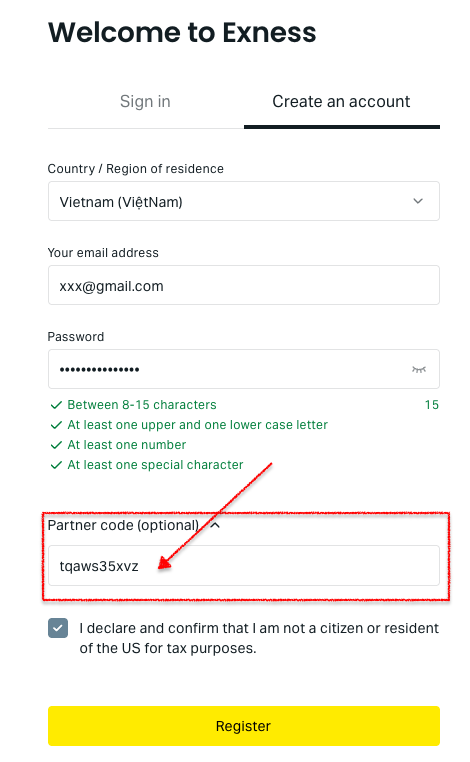
On the signup form:
- Select your country from the dropdown.
- Enter your email address (the one you'll use to log in to Exness).
- Expand the Partner code section — confirm that
ocwk220wujis filled. If it's empty for any reason, paste it in manually. - Create a password — 8 to 15 characters, with at least one uppercase, one lowercase, one number, and one special character.
- Click Register.
If the Partner code field is empty AND you don't paste it before clicking Register, the account is created without the partner attribution. There is no way to retroactively attach a partner code to an existing account — you'd need to either open a second account or use the partner-change flow. Take the extra 5 seconds to confirm the field shows ocwk220wuj.
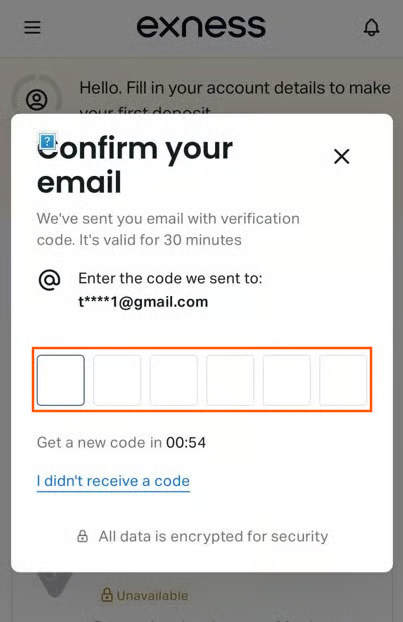
Step 2 — Verify your email
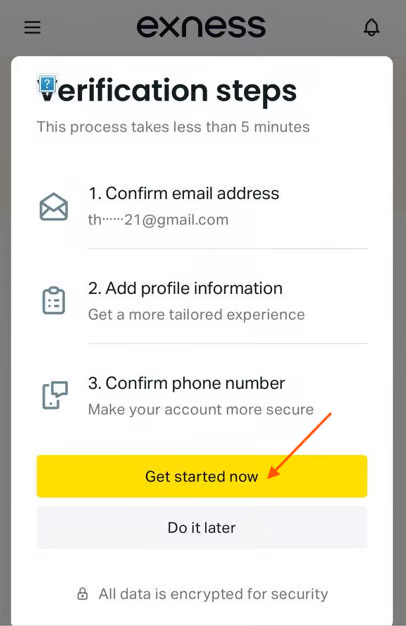
Exness sends a 6-digit code to the email you registered with. Open the email, copy the code, paste it into the verification screen.
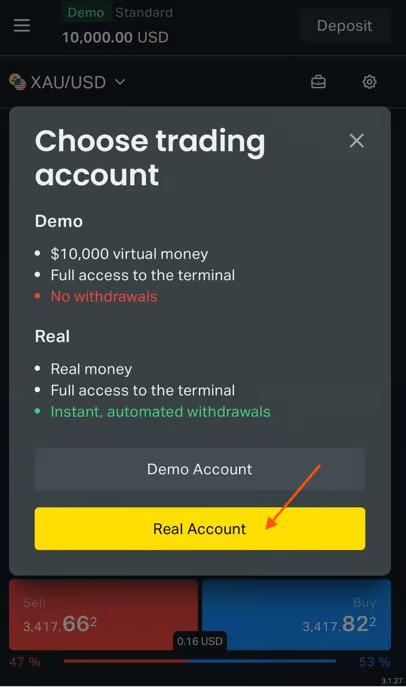
Step 3 — Pick "Real Account" and start the profile
After email verification you're prompted to choose between a demo account and a real money account. Choose Real Account — only real accounts are eligible for IB rebates.
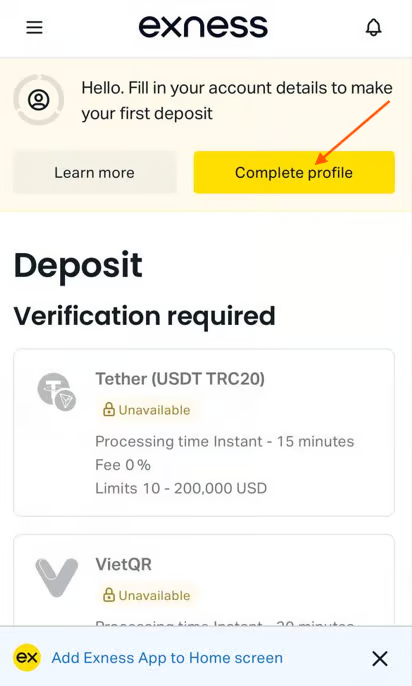
Then click Complete Profile to start the KYC flow.
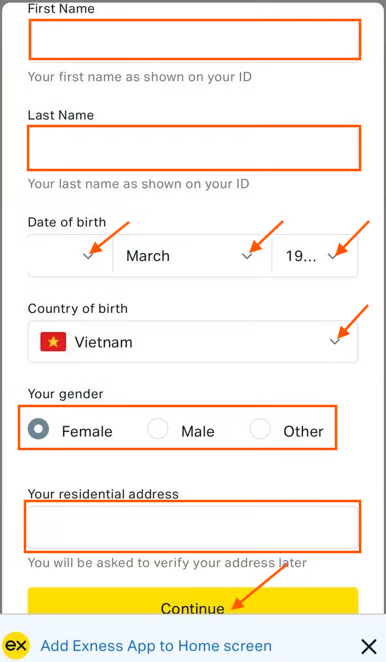
Step 4 — Fill in your identity details
Enter your personal details exactly as they appear on the government ID you plan to upload. Mismatches will reject the verification step later.
Fields:
- First Name and Last Name — match your passport / ID exactly.
- Date of Birth.
- Country of Birth.
- Gender.
Step 5 — Account purpose
Select why you're opening the account. Exness uses this for regulatory reporting. The three options are:
- Investment — long-term positions.
- Hedging — offsetting other exposure.
- Speculation — short-term trading.
Pick whichever describes your strategy honestly. None of the three blocks rebate eligibility.
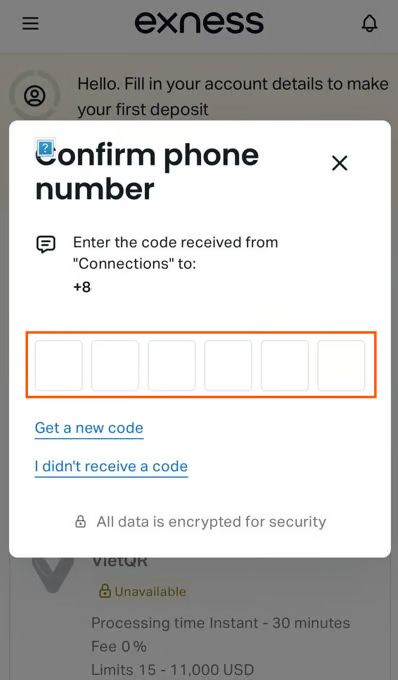
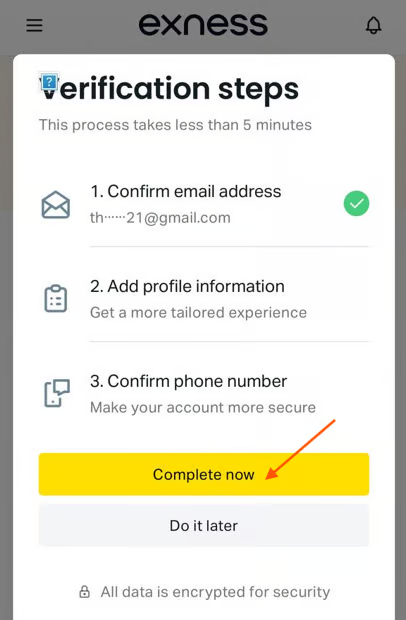
Step 6 — Confirm your phone number
Enter your phone number including the country code. Exness sends an SMS with a verification code; enter the code to confirm.
Step 7 — Verify identity (KYC document upload)
After the basic profile and contact verification, you'll see a "Contact details verified" confirmation. Click Verify identity now to begin the document upload step — this is what unblocks deposits and live trading.
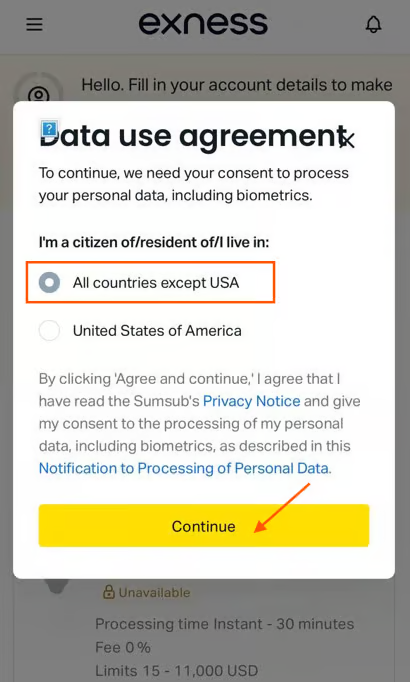
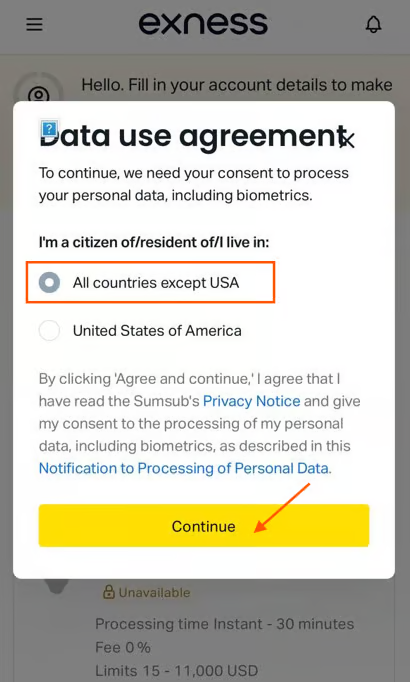
7.1 Data-use consent and residency
Select "All countries except USA" to confirm you are not a US resident or taxpayer (Exness IB does not cover US clients). Click Continue to accept the data-processing policy.
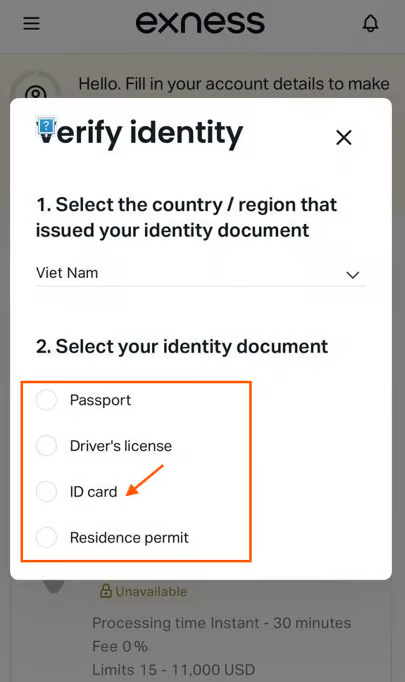
7.2 Upload your identity document
Pick the country that issued the document, then select the document type:
| Document | Notes |
|---|---|
| Passport | Single page; easiest verification. |
| Driver's License | Front + back required. |
| ID Card | Front + back required. Recommended for fastest verification. |
| Residence Permit | Front + back required. |
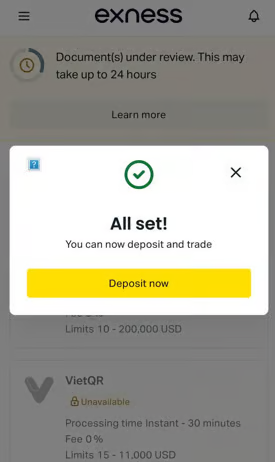
Photo quality matters — Exness's automated review will reject blurry or partially-cropped shots:
- All four corners of the document must be visible inside the frame.
- No glare from overhead lighting.
- No motion blur — hold steady, take in good lighting.
- Color photo, not a scanned monochrome copy.
Upload the front side, then the back side (if required for the document type), then click Submit document.
7.3 Document review queue
Once submitted, your documents enter Exness's review queue.
| Typical wait | Worst case |
|---|---|
| 3-7 minutes | Up to 24 hours |
Most submissions clear in under 10 minutes. If yours sits for hours, the document probably failed an automated quality check — re-upload with better photos.
7.4 Verification complete
When verification clears, you see the "All set!" confirmation. Click Deposit now to fund the account and start trading.
After verification
Your account is now eligible for daily rebates. You can:
| Action | Where |
|---|---|
| Deposit USDT or fiat | Exness wallet → Deposit. Multiple payment rails available; pick whichever suits your region. |
| Open a trading account (Standard / Pro / Raw Spread) | Inside the Exness wallet. Each trading account auto-tracks under the partner code. |
| Connect MT4 / MT5 | Use the credentials shown for the new trading account. |
| Trade | Anything Exness lists — Gold, BTC, ETH, Forex majors / minors, Indices, Stocks. |
| Watch the first rebate appear | Wallet credit line, usually within 24 h of your first closed trade. |
Common issues
| Symptom | Cause | Fix |
|---|---|---|
| "Partner code is invalid" on signup | You typed it manually with a typo. | Re-open the referral link so the code attaches automatically. |
| Verification rejected | Document photo too dark, blurred, or missing a corner. | Retake in better light, hold steady, fit all 4 corners in frame. |
| Verification stuck > 24 h | Edge case in Exness review queue. | Open Exness live chat — they can manually escalate. |
| First rebate not appearing | The trading account you traded on wasn't created under the partner code. | Open a NEW trading account from inside the Exness wallet (any account opened after partner attribution is eligible) and trade on that one. |
| US residency flagged later | You selected the wrong residency in §7.1. | Contact Exness support — you may need to KYC again with the right residency proof. |
Verify your setup is wired correctly
After your first trade clears and the rebate line appears in your wallet, you're done. If you want a manual check that the partner code is attached and rebates will start flowing, message @mr_doc on Telegram with your Exness account number and we'll confirm from our IB dashboard.
What's next
- Rebates overview — go back to the program summary.
- Client Trading Support Program — Standard (rebates only) vs Premium (signals + indicators).
- Forex Signals hub — execute our signals through your new Exness account for the rebate compounding effect.
- Forex Signals → Pair with rebates — the "trade-and-earn" loop explained.