Signal source & filters
The first three cards of the Trade Config tab — pick the signal source the engine listens to, enable the AI Agent for confidence scoring, and set the global filters (max positions, leverage range) that gate every accepted signal.
The top row of the Trade Config tab holds three cards that decide whether a signal even gets considered: the Signal Source the engine subscribes to, the AI Agent layer that scores signals before the rest of your config sees them, and the Filters card that caps how many positions can run at once and which leverage bands are accepted. Get these three right and the rest of your config is just sizing.
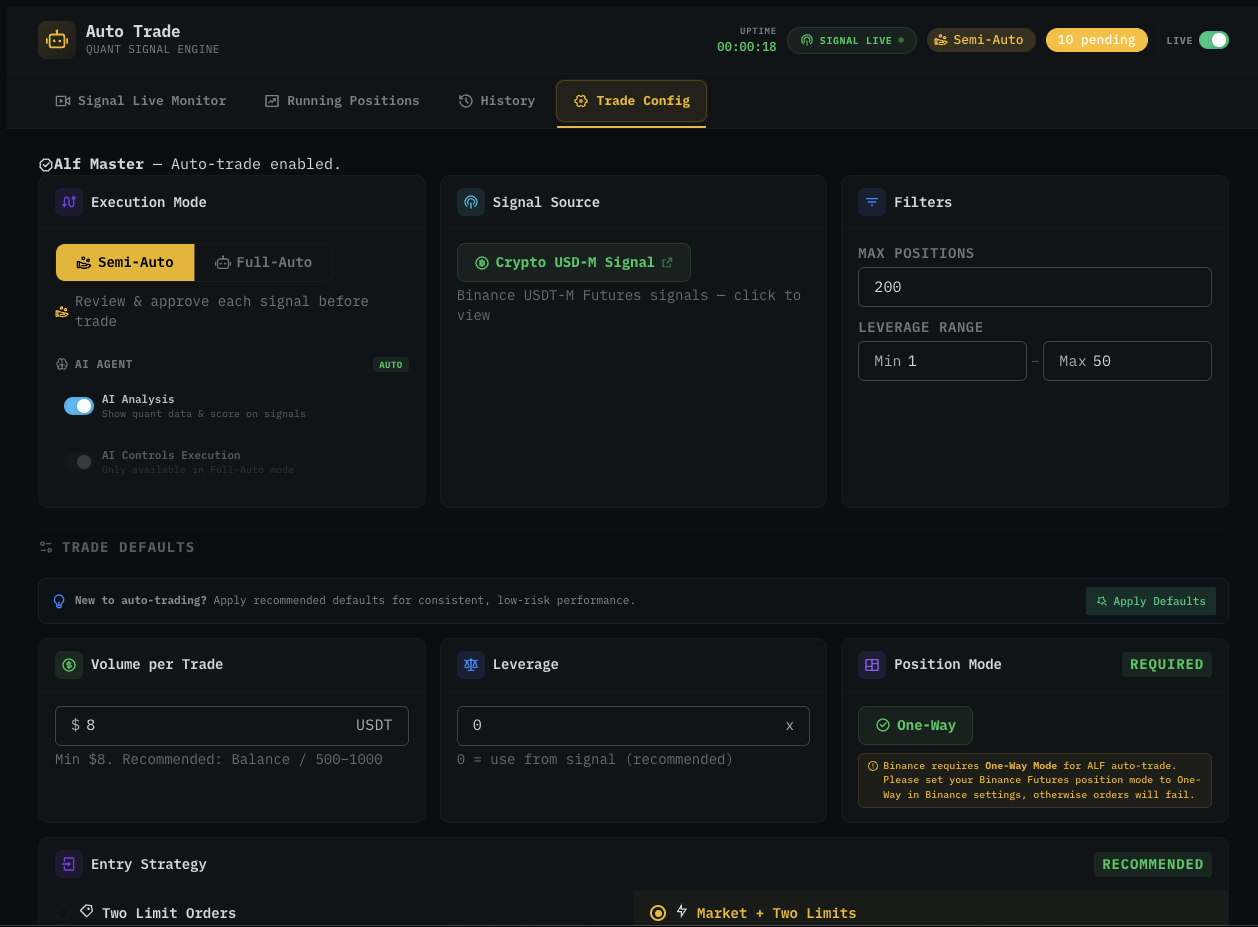
Signal source
Auto Trade currently supports one production source:
| Source | What it covers |
|---|---|
| Crypto USD-M Signal | Binance USDⓈ-M Futures signals across the perpetual contracts the analytics engine tracks. Long and Short. Includes entry zone, SL, six TP levels, leverage hint, and AI score. |
Click the link inside the card to open the source's live feed in a new tab — useful for sanity-checking the source's recent performance before enabling Auto Trade against it.
If you are looking for educational signals (no auto-execution), they are also exposed on the USDⓈ-M Signals hub and the Live Signals indicator on the chart. Auto Trade subscribes to the same hub — once you go LIVE, every published signal becomes a candidate order.
AI Agent
The AI Agent card sits inside the Execution Mode column. Two toggles:
| Toggle | What it does |
|---|---|
| AI Analysis | Computes a per-signal confidence score from the same microstructure layers that fed the signal — orderbook, footprint, liquidation, large-trade activity. The score is displayed on every pending signal card, and you can filter signals below a threshold in the AI controls. |
| AI Controls Execution | Only available in Full-Auto. When ON, the AI score becomes a hard gate — signals below the threshold are auto-rejected before they reach Approve / fire. Pair with a confidence floor in the AI settings to avoid low-conviction trades. |
In Semi-Auto, AI Analysis is purely informational — the score appears, but it never blocks the Approve button. In Full-Auto, turning on AI Controls is the easiest way to dial up signal quality at the cost of frequency.
A high score does not guarantee profit; a low score does not guarantee loss. The score is one probabilistic input, not a substitute for chart context. Always glance at the chart before approving in Semi-Auto. See Tips for profitable auto trading.
Filters
The Filters card caps two things globally — they apply to every signal regardless of source or symbol.
Max Positions
The maximum number of concurrent open positions the engine can hold across all symbols.
| Profile | Recommended max positions |
|---|---|
| First month | 3 — 5 |
| After 50+ executed trades | 5 — 10 |
| Experienced, well-funded | 10 — 20 |
| Default ceiling | 200 (effectively unlimited — lower this) |
When the cap is reached, new signals are skipped with a "max positions reached" reason in the Signal Live Monitor. The default 200 is a soft ceiling — most accounts should run far below it. Leaving it at 200 with a small balance is the fastest way to over-extend margin during a busy market window.
Leverage range
Only signals whose suggested leverage falls inside [Min, Max] are accepted.
| Setting | Default | Notes |
|---|---|---|
| Min Leverage | 1× | Signals below this are skipped. Keep at 1× unless you specifically want to skip low-leverage setups. |
| Max Leverage | 50× | Hard cap. Signals above this are skipped, regardless of how strong the signal looks. Lower this aggressively when starting. A 3×–10× range is a sane starting point. |
If you want to filter out high-risk trades entirely, drop Max Leverage to 20× or even 10×. This is the single most effective single-knob risk reduction on the config page — leverage filtering applies before the order is sized, so you never accidentally take a 50× signal when you only meant to risk 5×.
How the three cards interact
The order signals flow through:
- Signal source publishes a new signal.
- Subscription check — is this source enabled in Trade Config? If not, signal is dropped silently.
- AI score — if AI Analysis is on, the score is attached. If AI Controls Execution is also on (Full-Auto only) and the score is below threshold, the signal is auto-rejected here.
- Filters — Max Positions and Leverage Range are checked. Out-of-range signals are skipped with a reason logged.
- Per-signal subscription state — confirms the signal is for an allowed symbol (whitelist / blacklist; see Trade Config).
- Trade defaults — volume and entry strategy are calculated.
- Execution mode — Semi-Auto routes to the Signal Live Monitor for approval; Full-Auto fires immediately.
Each step that drops a signal logs a clear reason on the Signal Live Monitor's Skipped filter — useful when you wonder why a signal you saw on the chart didn't fire on your account.
Common pitfalls
- Max Positions left at the 200 default — fine on paper, dangerous in practice. One volatile market hour can hit 20+ signals across symbols; if your margin can't cover them, you'll get margin-call errors mid-burst.
- Max Leverage left at 50× while the rest of your config assumes conservative sizing — a single 50× signal can blow your per-trade risk budget. Match leverage cap to your risk tolerance.
- AI Controls Execution toggled on without setting a threshold — uses the default cutoff, which may be too low or too high for your taste. Open the AI settings and pick an explicit floor.
- Subscribing to a source then forgetting it — sources that fire often (intraday) can produce 10–30 signals/day. Re-check
Max PositionsandLeverage Rangewhen you add a fast source.
What's next
- Trade Config — defaults — the rest of the config tab: volume, entry strategy, TPs, trailing.
- Signal Live Monitor — where accepted signals show up.
- USDⓈ-M Signals hub — the underlying signal feed.