Mobile experience
The chart terminal on mobile — touch gestures, the More menu, drawing drawer, side-panel sheet, bottom-panel sheet, and the widget popup. Single-pane only; everything else mirrors desktop.
The mobile build of the chart terminal is a parallel layout — the same data, same indicators, same orderbook, same trade controls — laid out for one thumb. Multi-pane layouts are desktop-only; mobile is fixed at one pane. The toolbar collapses into a More menu, the drawing toolbar becomes a drawer, the side panel becomes a swipe-from-right sheet, and the bottom panel becomes a swipe-from-bottom sheet. This page covers the mobile-specific controls and the gestures that drive them.
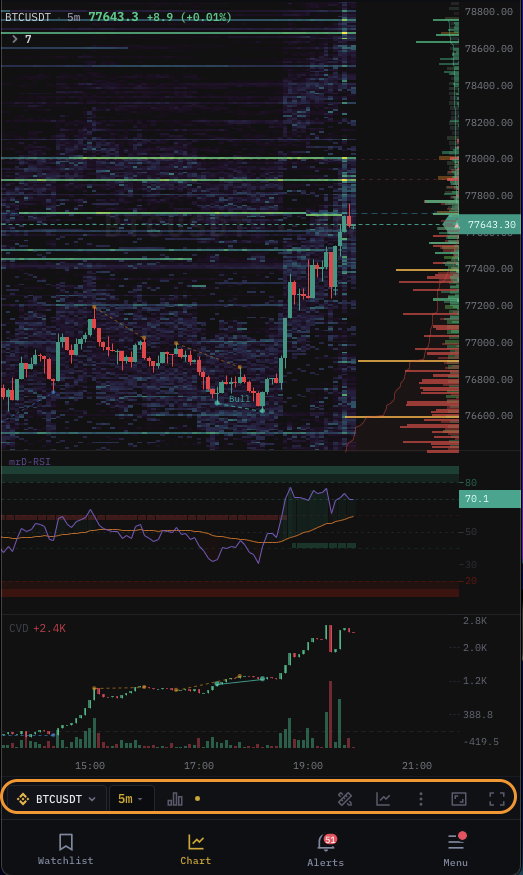
What's the same as desktop
- Symbol search & watchlist — same picker, full-screen on mobile.
- Timeframes — same menu, same quick row, same custom TFs.
- Chart types — Candlestick, all three Footprint modes (Bid×Ask, Delta, Volume), and Tick · Heatmap all available.
- Indicators — same catalog, same per-indicator settings.
- Drawings — same tool set.
- Replay — same controls.
- Quick trade dialog — same fields.
- Alerts, account, settings — same dialogs, full-screen on mobile.
What's mobile-only
Fixed single pane
Multi-pane layouts (2v, 4-up, 6-mosaic, etc.) are disabled below 992 px of viewport. Mobile gets a single pane that fills the screen. The layout selector still opens, but only the single-pane template is enabled — the rest are greyed out with a "Resize ≥ 992 px" hint.
If you want to glance at multiple charts on mobile, use the watchlist (which carries indicator badges per row) or open the symbol picker mid-trade.
The More menu
Top-right corner has a kebab icon. Tap it to open the More menu which gives access to controls that the toolbar can't fit:
| Entry | Opens |
|---|---|
| Indicators | Indicator catalog dialog. |
| Drawings | The drawing drawer (see below). |
| Layouts | The per-chart preset list. |
| Replay | Replay mode. |
| Settings | Chart settings dialog. |
| Theme | Dark / light toggle. |
| Help | Quick reference for gestures. |
The More menu replaces the desktop toolbar items that don't fit on a phone-width strip.
Drawing drawer
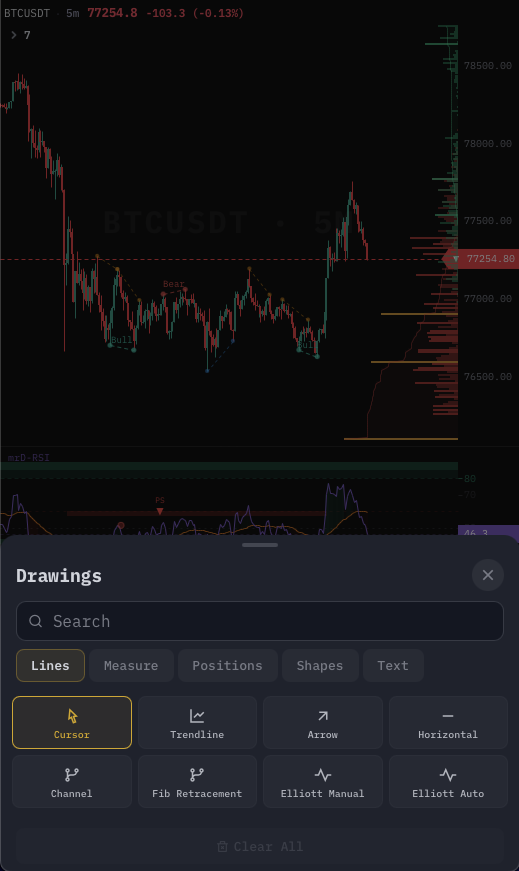
The left drawing toolbar collapses on mobile. Tap Drawings in the More menu to open the drawing drawer — a bottom sheet that lists every tool with its icon and name. Tap a tool to arm it; the sheet closes and the chart cursor turns into a placement target.
While a tool is armed, a small chip floats at the top showing the armed tool. Tap the chip to disarm or pick a different tool.
Side-panel sheet
The side panel becomes a swipe-from-right sheet on mobile:
- Swipe left from the right edge of the chart to open.
- Tab strip runs vertically along the left edge of the sheet.
- Swipe right on the sheet (or tap the chart) to close.
Side-panel tabs available on mobile: Orderbook, Walls, Depth Profile, Whales, Live Signals, Bot status. The Multi-exchange Depth tab is hidden on mobile because the matrix can't render legibly at phone-width — open it on a tablet or desktop.
Bottom-panel sheet

The bottom panel becomes a swipe-from-bottom sheet:
- Swipe up from the bottom edge to open.
- Pull-up handle in the middle of the screen at the closed state.
- Tab strip runs horizontally across the top of the sheet.
- Swipe down to close.
All bottom-panel tabs available on mobile: Open Positions, Working Orders, Conditional Orders, Trade History, Indicator Alerts, Screener Alerts, Account telemetry.
Floating trade bar
The floating bar is on by default on mobile because it's the fastest way to place an order with one thumb. The bar docks at the bottom-center above the bottom-panel handle. BUY / SELL buttons are oversized for touch targets (44 px minimum).
Widget popup
Tap a position line, working-order line, or indicator-row summary on mobile and a widget popup opens — a context-aware mini panel docked at the bottom. Examples:
- Tap a position's TP line → widget shows the TP price + drag-to-edit slider + close-position button.
- Tap a working-order line → widget shows cancel / reprice.
- Tap an indicator-row summary → widget shows the live value + a link to per-indicator settings.
The widget popup is mobile-only. On desktop the equivalent action is hover + click on the line itself.
Touch gestures
| Gesture | Action |
|---|---|
| Pan (one-finger drag) | Scroll time horizontally. |
| Pinch (two-finger) | Zoom in/out on time. |
| Two-finger drag vertical | Pan price (only when scale is locked or on log mode). |
| Tap | Show crosshair at that bar. |
| Long-press | Show the chart context menu (Buy at price / Sell at price / Add to watchlist / Settings). |
| Swipe right from left edge | Open the global app drawer (nav). |
| Swipe left from right edge | Open the side-panel sheet. |
| Swipe up from bottom edge | Open the bottom-panel sheet. |
| Swipe down from top edge | Close the top-area menus (More, Symbol). |
| Double-tap chart | Auto-fit price axis. |
| Two-finger tap | Zoom out one step (Android quirk for trackpad-less devices). |
Toolbar on mobile
The top toolbar shrinks to:
| Cell | Notes |
|---|---|
| Symbol chip | Tap to open the symbol picker (full-screen). |
| Timeframe chip | Tap to open the TF menu (full-screen). |
| Chart type chip | Compact — tap to cycle, long-press to open the picker. |
| Heatmap slider chip | Long-press to expand to a full-width slider. |
| More | Kebab — opens the More menu. |
Theme, settings, replay, layouts all live behind the More menu to keep the strip readable.
Status bar on mobile
The full desktop status bar would not fit; mobile shows a condensed version:
- Connection dot (color only).
- Account name (short).
- Unrealized P&L.
- Bot status dot.
Tap any condensed cell to see the full desktop detail in a popup. Long-press the connection dot to force a reconnect.
Add to home screen
Mobile supports installing the terminal as a PWA — the page opens fullscreen without browser chrome. See Add to home screen for the install flow on iOS and Android.
Performance on mobile
Mobile GPUs are weaker than desktop. Heavy combinations (Tick · Heatmap + depth heatmap overlay + 6 indicators) will drop frames. To keep mobile smooth:
- Pick either Tick · Heatmap or the depth heatmap overlay — don't stack both.
- Disable footprint helpers when you're in Candlestick mode.
- Close the side-panel sheet when you don't need it (it's an extra rendering surface).
- Use a TF that's appropriate for your zoom — sub-second TFs at high zoom hammer mobile GPUs.
The terminal will not warn you about mobile performance; trust your frame-rate.
Common questions
I can't see the drawing toolbar on mobile. It's hidden. Open the More menu → Drawings → the drawing drawer opens.
Position lines are hard to drag on mobile. The drag tolerance is wider on mobile (~10 px) but precise edits still benefit from the widget popup — tap the line, then drag the popup's slider for fine control.
Side-panel sheet won't open. You may have it disabled in Chart settings → Status bar → Allow side-panel sheet on mobile. Toggle on.
My multi-pane layout disappeared after I opened on mobile. The layout is preserved; mobile just renders pane 1 only. Reopen on desktop and your full layout returns.
Floating bar covers the bottom-panel handle. Drag the bar by its handle to reposition it. Position persists per device — mobile and desktop can have different positions.
Pinch-zoom keeps zooming in instead of out. Pinch direction matters — pinch in (fingers closer) zooms out time; pinch out (fingers apart) zooms in time. Some Android devices invert this in their gesture settings; check your OS.
What's next
- Add to home screen — install the terminal as a mobile app.
- Overview — back to the terminal anatomy if you want to compare desktop vs. mobile side-by-side.
- Trading alerts — set push notifications so you don't have to keep the app open on mobile.