Auto Trade — overview
Auto Trade is the Quant Signal Engine that routes real-time market signals into orders on your Binance USD-M Futures account. Semi-Auto for review-each-signal control, Full-Auto for 24/7 unattended execution. Plan-gated, API-gated, One-Way-mode-gated.
Auto Trade is not a charting tool. It is a Quant Signal Engine — an execution layer built on top of the mrD analytics platform, connected to your Binance USD-M Futures account through your own API keys. When LIVE is on, the engine receives signals from the signal hub over a persistent connection, filters them against your config, places real orders on your account, and tracks every position to its final TP or SL — all without you opening another tab. Your funds stay on Binance; we never custody money, never hold withdrawal permission, never see your password.
Why mrD Auto Trade is different
mrD signals are not derived from a single technical indicator. They are synthesized from multiple layers of market microstructure data that no single oscillator can capture on its own:
| Data layer | What it captures |
|---|---|
| Orderbook heatmap | Liquidity zones, walls, and hidden buy/sell pressure |
| Footprint chart | Bid/ask volume at every price level — who is in control |
| Liquidation heatmap | Price zones with dense stop clusters and cascade risk |
| Large trades & whales | Abnormal institutional and whale-sized prints |
| Open interest & funding | Futures market heat and positioning bias |
| CVD — Cumulative Volume Delta | True buying vs. selling pressure over time |
| VPIN | Smart-money flow vs. uninformed flow detection |
| Smart Ranges & S/R zones | Volume-backed support and resistance levels |
Every signal that fires has already cleared a filter built on top of all of these — that is what the AI score in the Trade Config represents. Higher score = more layers agreed at signal time.
What happens when a signal fires
When Live Trading Signals is active on the chart and Auto Trade is LIVE, every qualifying signal triggers a complete order sequence with no manual click required:
- Entry — the signal's entry zone is calculated and a limit or market order is placed on your Binance USD-M Futures account.
- Stop-loss — set automatically and displayed as a draggable red line on the chart at the signal's SL price.
- Take-Profit ladder — up to six TP levels (TP1 → TP6) are placed simultaneously, each with its own volume allocation, all rendered as labeled price lines on the chart.
- Position tracking — the position appears in the Positions panel tagged
AUTO, with live PnL, leverage, and the SL/TP order IDs visible.
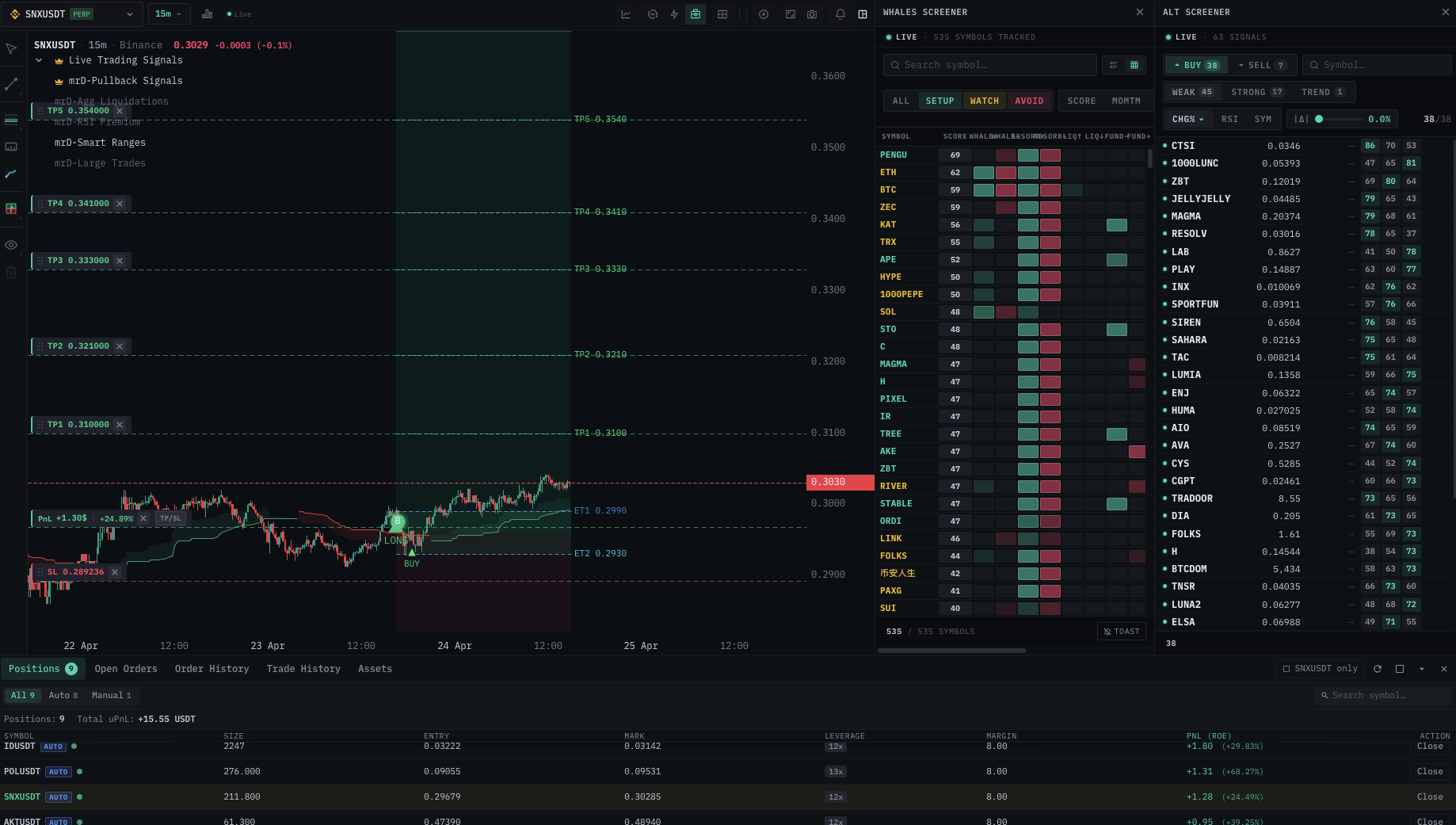
The example below shows a BUY signal on SNXUSDT on the 15-minute timeframe: entry placed near 0.3032, SL at 0.2872, six TPs deployed from 0.3100 up to 0.3540, the Positions panel running nine concurrent AUTO trades for a total +15.26 USDT uPnL — all from one screen.
The four tabs
| Tab | What it does | Page |
|---|---|---|
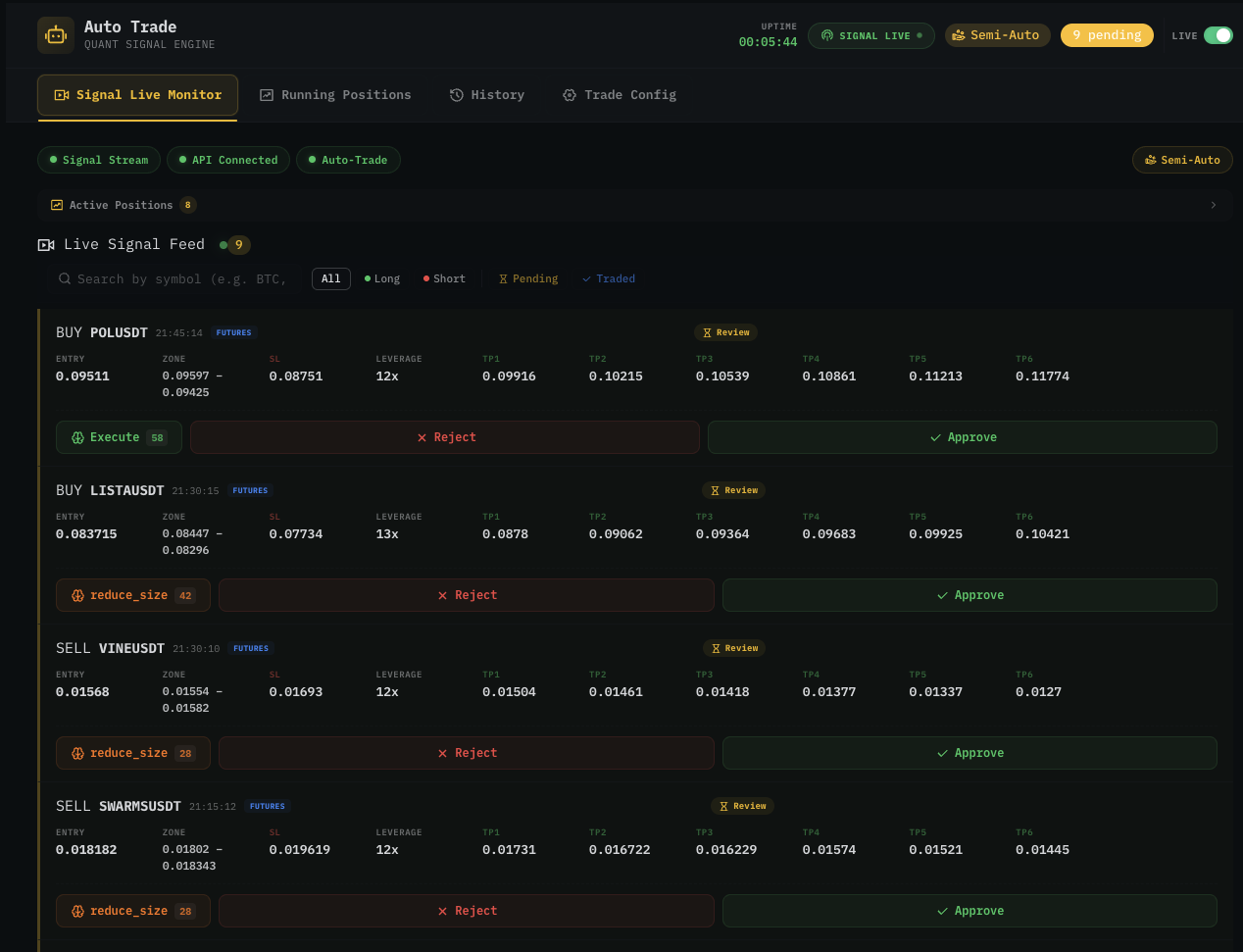
| Signal Live Monitor | Live feed of every incoming signal. In Semi-Auto, approve / reject each one. In Full-Auto, watch them fire. | Signal Live Monitor |
| Running Positions | Open trades the engine is managing — entry, SL, TP ladder, trailing state, unrealized PnL. Draggable SL/TP lines update Binance orders instantly. | Running Positions |
| History | Closed trades + per-source / per-symbol / per-TF win rates and the equity curve. | History |
| Trade Config | The single tab where everything is configured — execution mode, signal source, filters, AI agent, volume, leverage, entry strategy, TP ladder, trailing TP, trailing SL. | Trade Config |
Plus a top bar shared across all four tabs:
- SIGNAL LIVE / OFFLINE / CONNECTING chip — current signal-hub connection status.
- Semi-Auto / Full-Auto chip — current execution mode.
- Pending counter — signals waiting for your approval in Semi-Auto.
- LIVE / OFF master switch — your kill switch (see below).
The two execution modes
Semi-Auto
- Every incoming signal lands in the Signal Live Monitor as a pending card with the entry, SL, and full TP ladder.
- You review the chart context — most cards have a one-click chart button that opens the symbol with the proposed lines overlaid.
- Click Approve to fire the order sequence; Reject to discard.
- The engine places nothing until you approve.
- Best for — first 50–100 trades on a new config, or any time you want full per-signal control.
Full-Auto
- Signals arrive → orders fire immediately, no manual approval step.
- Switching to Full-Auto opens a risk-warning dialog with a confirmation checkbox you must tick.
- Best for — after you've validated your config in Semi-Auto for at least 50–100 trades and trust both the signals and your filters.
Mode switching is instant and does not affect already-open positions.
The traders who use Semi-Auto intelligently — approving only the setups that pass their own chart check — consistently outperform traders who flip Full-Auto on and trust the engine blindly. See Tips for profitable auto trading before you switch.
The LIVE master switch
The LIVE / OFF toggle at the top of every Auto Trade tab is your kill switch. When OFF, the engine ignores every signal regardless of mode or subscription. Flick it off to pause every strategy instantly with one click.
Two things to know about it:
- Existing positions are NOT closed by toggling LIVE off. Open positions stay open under their original SL/TP — the engine only stops opening new ones. Close existing positions manually from Running Positions or directly on Binance if needed.
- The signal-hub connection must be healthy for LIVE to mean anything. If the chip in the top bar reads
OFFLINEorCONNECTING, no signals are arriving anyway — fix the connection before assuming LIVE-on means active. See Toasts & status feedback.
Prerequisites
| Requirement | Why |
|---|---|
| Plan | Auto Trade requires the Master plan or higher. Lower tiers can view signals but cannot place orders. See Plans & billing. |
| Binance API key | Connect on the API Connect page. Futures trade permission required; withdrawal must be disabled. |
| Position Mode | Your Binance Futures account must be set to One-Way Mode. Hedge mode is not supported — orders will fail. See Hedge mode notes. |
| Verified email | Required to arm Auto Trade. See Verify email. |
If any prerequisite is missing, a banner at the top of the page tells you exactly which one and how to fix it.
Built-in risk controls
Auto Trade is not designed to run blind. Several protection layers are built in:
| Control | How it helps |
|---|---|
| LIVE / OFF kill switch | Stops new signal processing in a single click. |
| Pending approval (Semi-Auto) | Nothing executes until you click Approve. |
| AI score filter | Only signals above your configured confidence threshold are processed. |
| Max positions cap | Hard cap on how many concurrent open positions the engine can hold. |
| Whitelist / blacklist | Restrict exactly which symbols can be traded. |
| Leverage bounds | Cap the leverage applied to every order. |
| Trailing stop-loss | Once a TP hits, SL automatically moves up — converts paper gains to locked outcomes. |
Read Risks & disclaimer in full before enabling LIVE. Leveraged futures trading carries significant risk; Auto Trade does not guarantee profits.
What you cannot do
- Cannot withdraw your funds — the API key is issued without withdraw permission. Your money never leaves your Binance account.
- Cannot change leverage per symbol on Binance for you — leverage per symbol is set on Binance directly. The Trade Config's leverage cap only filters which signals are accepted.
- Cannot trade through Telegram — Telegram alerts are read-only. All trade execution stays in the app.
Recommended reading order
- Trade Config — full reference for every knob.
- Signal source & filters — pick which feed the engine listens to.
- Signal Live Monitor — approve workflow for Semi-Auto.
- Running Positions — manage open trades with draggable SL/TP lines.
- History — review closed-trade results.
- Tips for profitable auto trading — the habits that separate consistent traders from blow-ups.
- Risks & disclaimer — read before enabling LIVE.