Widgets — overview
The Chart Terminal Widget Picker — a draggable floating panel that toggles up to 12 dockable widgets alongside the chart (Symbol Lists, Order Book, DOM, Whales Screener, Alt Screener, Depth Profile, Trade, Algo Signals, Trade Button, Positions & Orders, Liquidations, Custom Scripts).
The Widget Picker is the central control panel for everything that docks alongside the chart in the Chart Terminal. From a single 3-column grid (2-column on mobile) you toggle up to 12 widgets on or off — order book, DOM, screeners, trade panel, liquidations, custom scripts and more. Active widgets dock to the side or bottom of the chart depending on widget type; the chart resizes around them automatically. Your active widget set is saved per device so the same terminal layout reopens next session.
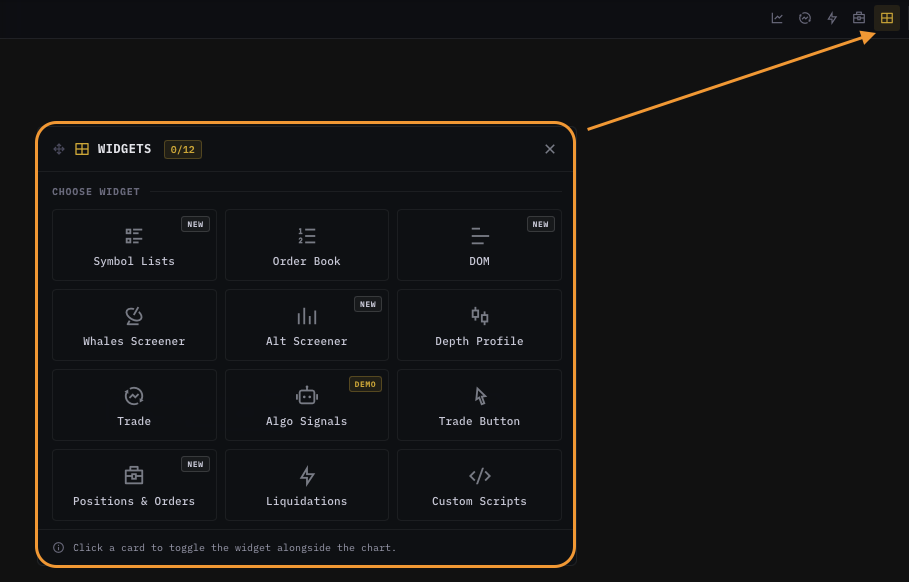
Open the picker
| Surface | How |
|---|---|
| Top toolbar | Widget icon (grid icon) — click to toggle the picker. |
| Keyboard | W (when the chart has focus). |
| Mobile | Bottom toolbar → Widgets button → opens a 2-col grid sheet. |
The picker is a draggable floating panel — the chart stays interactive behind it. Drag the header to reposition; the position persists for the rest of your session. Click outside the picker, press Esc, or click the close button to dismiss. It reopens at the same spot next time, so you can build a habit of dragging it once to a corner that doesn't cover your usual focus area.
The 12 widgets
| Widget | Docks to | One-line summary | Detail page |
|---|---|---|---|
| Symbol Lists | Left or right side | Watchlists, quant alerts, signal feeds — pinnable to either side. | Symbol Lists widget |
| Order Book | Right side | Classic Binance-style depth book — PRICE / SIZE / TOTAL columns. | Order Book widget |
| DOM | Right side | Bookmap-style orderflow DOM with absorption, walls, and LTP follow. | DOM widget |
| Whales Screener | Right side | Market-wide scorecards with large-order alerts. | Whales Screener widget |
| Alt Screener | Right side | RSI-aligned buy / sell signals across alts. | Alt Screener widget |
| Depth Profile | Right side | Multi-exchange merged depth and liquidity aggregator. | Depth Profile widget |
| Trade | Right side | Place orders directly with on-chart TP / SL drag handles. | Trade widget |
| Algo Signals | Right side | Orderbook-microstructure trading signals (currently DEMO). | Algo Signals widget |
| Trade Button | Floating over chart | Compact floating quick-trade bar — buy / sell with one click. | Trade Button widget |
| Positions & Orders | Bottom panel | Binance-style positions / open orders / history tabs. | Positions & Orders widget |
| Liquidations | Right side | Liquidation distribution heatmap + recent-liquidations feed. | Liquidations widget |
| Custom Scripts | Right side | Write and run DeltaDSL custom indicators inside the terminal. | Custom Scripts widget |
How widgets dock
Each widget knows where it belongs:
- Side-panel widgets (Order Book, DOM, Whales, Alt Screener, Depth Profile, Trade, Algo Signals, Liquidations, Custom Scripts) — dock to the right of the chart in a stack. Multiple side-panel widgets stack vertically; you can drag the dividers between them to resize.
- Bottom-panel widget (Positions & Orders) — docks under the chart in a horizontal strip with tabs for Positions / Open Orders / Trade History.
- Floating widget (Trade Button) — floats over the chart at a saved position. Drag the title bar to reposition.
- Side-pinnable widget (Symbol Lists) — can pin to either the left or right side of the chart. Right-click the widget header → Pin left / Pin right.
When you toggle a widget ON, the chart canvas resizes to make room. When you toggle OFF, the chart reclaims the space. Resize is debounced so dragging dividers stays smooth.
Picker layout
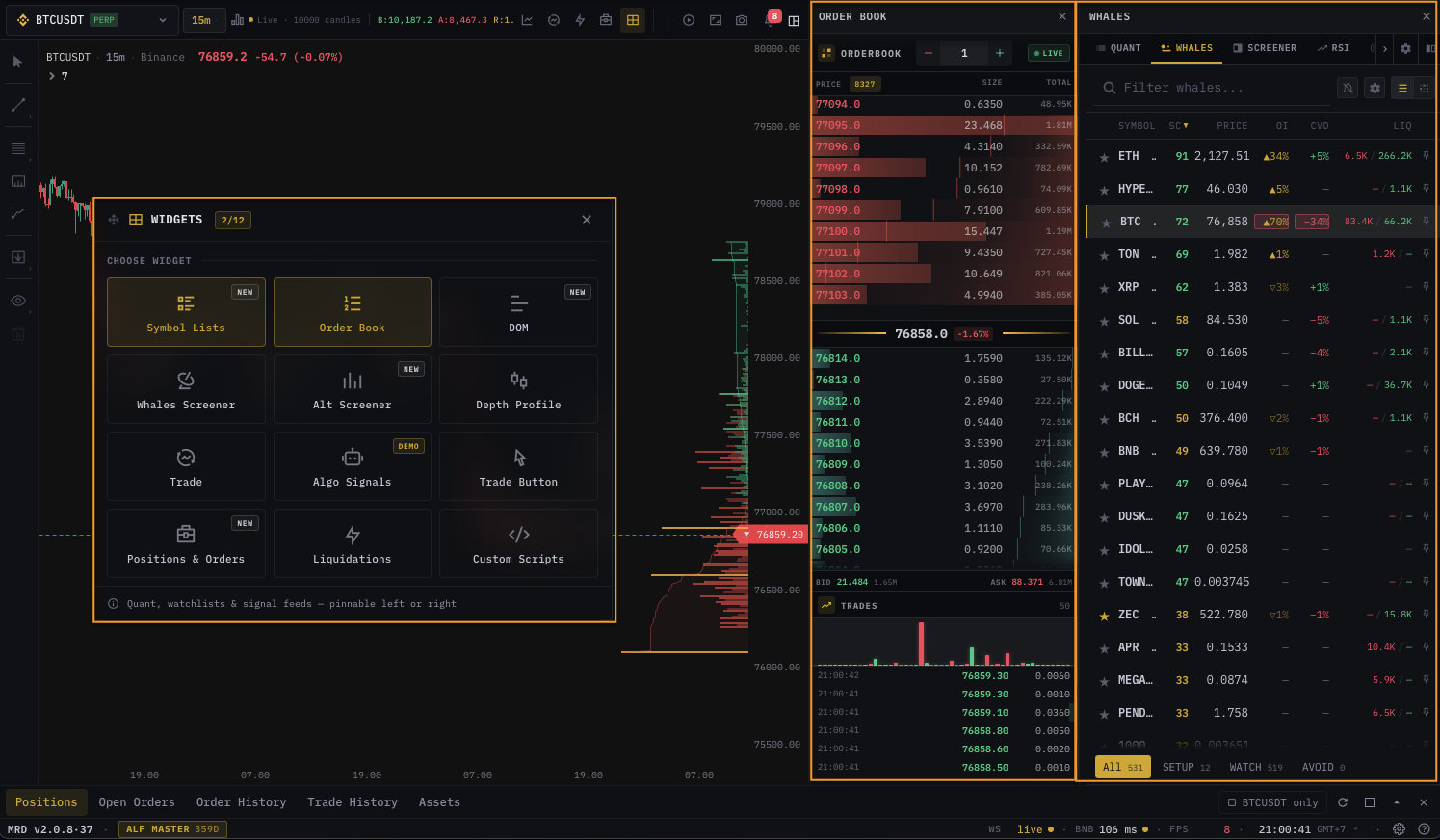
Card states
Each widget tile has three visual states:
| State | Appearance | Meaning |
|---|---|---|
| Inactive | Transparent background, thin neutral border, dim icon and text. | Widget is off. Click to activate. |
| Hover | Subtle amber tint, amber icon and text. | Preview — about to activate. |
| Active | Amber-tinted background, amber border, amber icon and text. | Widget is on. Click again to deactivate. |
The footer slot below the grid shows the description of the currently hovered card (or the description of the first active card if nothing is hovered). This keeps card chrome tight while still surfacing what each one does as your mouse passes over.
Two card badges:
NEW— recently added widget. Resets every release cycle.DEMO— beta or preview widget (currently only Algo Signals). May change or disappear; do not rely on it for production trading.
Persistence
Your active widget set is saved per device so the terminal reopens with the same widgets active across page reloads, browser restarts, and different chart layouts (the widget set is a terminal-level setting, not a per-layout one). Defaults on a fresh install are Order Book + Walls. On a different device, you'll start fresh — the active set is not synced to your account.
The picker's own position is remembered for the rest of the current session, then resets — so it reopens near your last spot but never anchors to an off-screen point after a window resize or monitor change.
Mobile widget experience
On screens narrower than tablet size:
- The picker is a 2-column tile grid in a fullscreen sheet (not the desktop draggable panel).
- Active widgets open as fullscreen sheets, one at a time — mobile screens cannot host multiple side panels.
- The fullscreen sheet has a header with the widget label and a close button.
- Switching between widgets requires closing the current one and reopening the picker.
This is a deliberate UX choice — pro-mobile trading tools (Binance, Bybit, OKX) all use bottom-sheet widget launchers rather than the desktop multi-pane approach, because mobile GPUs and screen real estate cannot sustain the desktop pattern. See Mobile chart terminal for the broader mobile UX.
Resource management
Some widgets require a persistent connection to the market-data backend (Whales Screener, Algo Signals, DOM). The terminal opens that connection lazily — only when one of those widgets is activated. When you deactivate the last connection-using widget, the connection is dropped to free resources. Re-activating any of them reopens it within about a second.
This is one reason to deactivate widgets you're not actively using — every open connection costs CPU on your end and bandwidth on both sides.
What's next
- Symbol Lists widget — watchlists, quant alerts, signal feeds.
- Order Book widget — classic depth ladder.
- DOM widget — bookmap-style orderflow.
- Trade widget — order placement with TP / SL drag.
- Positions & Orders widget — bottom-panel positions.
- Custom Scripts widget — DeltaDSL inside the terminal.
- Side Panel overview — how side-docked widgets behave inside the panel.
- Bottom Panel overview — bottom-docked positions and orders.
- Mobile chart terminal — mobile widget UX.
- Dashboard widgets — different widget system on the home page.